5 Ways for Making Your Editable PDFs to Non-Editable Formats

Summary :
Are you still worried about someone tampering with your PDF files? In this article, you can learn five effective methods to make your PDFs remain secure and non-editable.
Table of Contents
Make Editable PDF Non-Editable
When sharing PDF files, you sometimes need to make editable PDFs to non-editable formats to prevent unauthorized changes. This is particularly important for legal documents, contracts, or important reports.
This article will introduce 5 effective methods to transform editable PDFs into non-editable forms.
Flatten the PDF Online for Free
The easiest way to make a PDF non-editable is by flattening it, which converts its editable elements, such as form fields and annotations, to a static format.
PDFgear Online PDF Editor is a completely free online tool that allows you to instantly convert PDFs to non-editable, and it requires no registration or software downloads.
Step 1. Upload PDF File to PDF Editor Online
Open the PDFgear Online PDF editor and click Upload PDF file to upload the file you need to process.
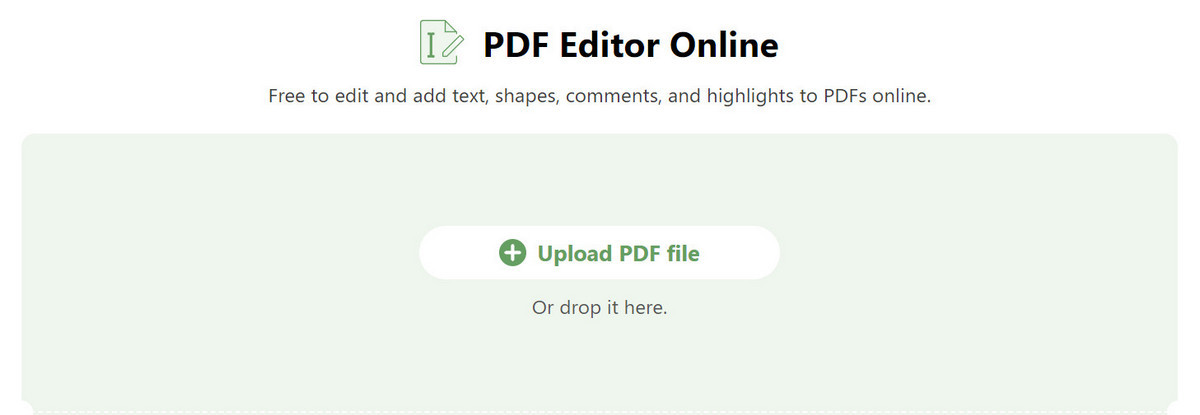
Open PDF File with Online PDFgear
Step 2. Flatten PDF in Online PDFgear
Once the file is uploaded, click the Print file button in the upper right corner to enter the print preview interface.
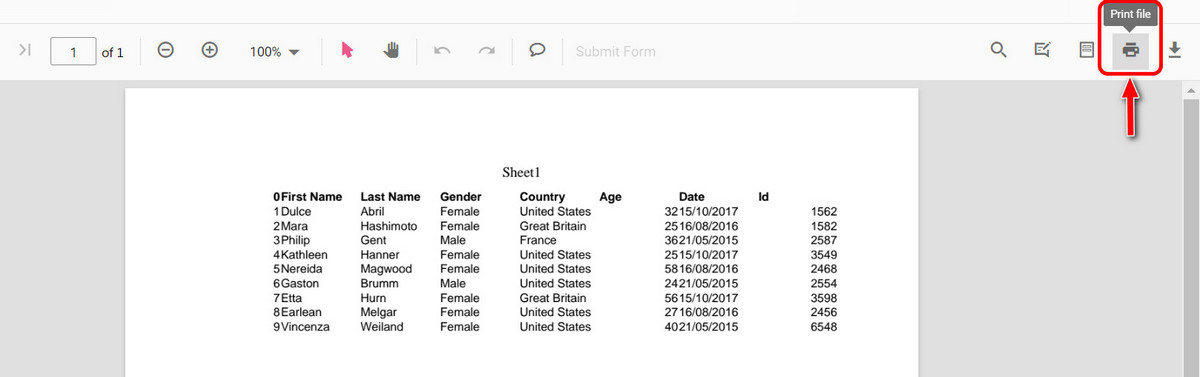
Flatten PDF Using Online PDF Editor
Step 3. Download a Non-editable PDF File
You can modify options such as paper size, margins, and range in the print settings area. After confirming that the preview is correct, click Print to save the flattened PDF.
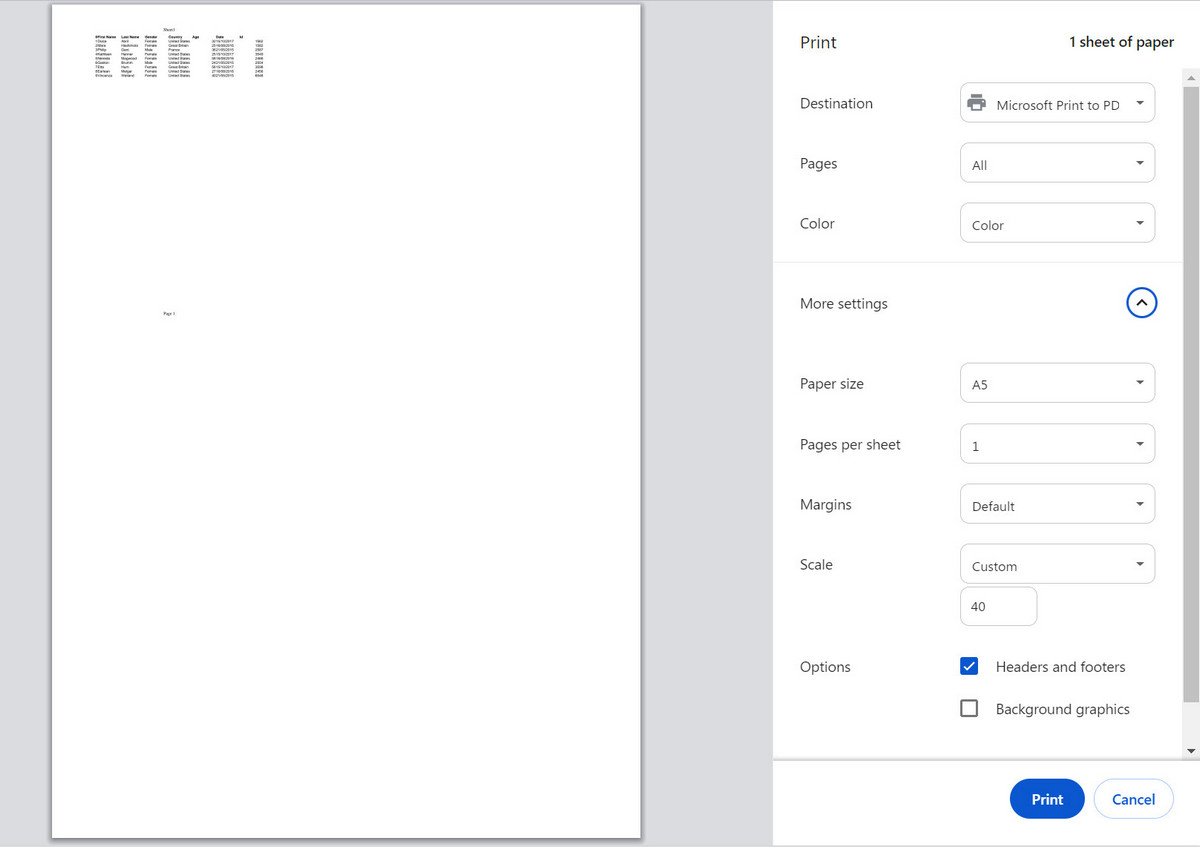
Download the Flattened PDF File
After flattening, the PDF file will convert fillable PDF to regular PDF and compress all dynamic elements into ordinary text or images. Therefore, previously editable PDF files will no longer be editable.
Flatten Form Fields in Adobe Acrobat
Adobe Acrobat also supports flattening PDF files. Compared to method one, Acrobat offers more flexible options, such as Flatten Form Fields. Other dynamic elements in the file, like comments and signatures, can remain unaffected. This method allows users to selectively process parts of the file, ensuring form data remains fixed while keeping other content editable.
Step 1. Open the PDF File with Acrobat
After opening Acrobat, click on File > Open to select the PDF file you need to modify.
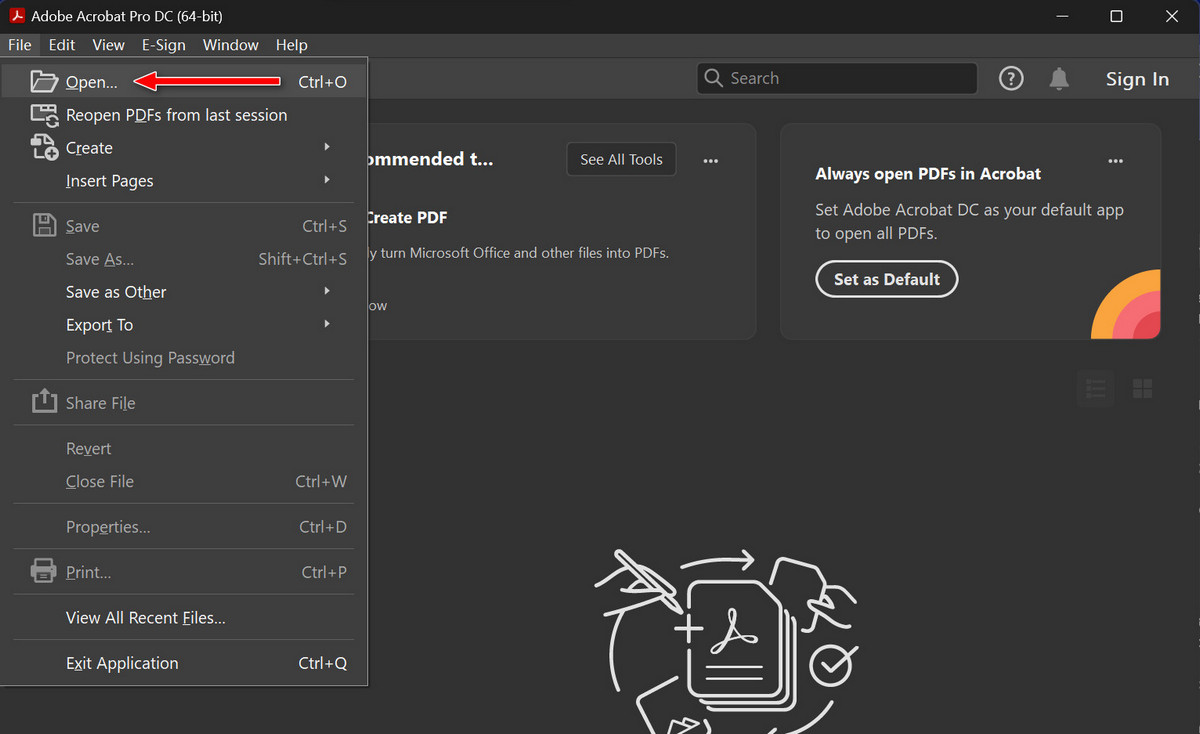
Upload PDF File to Acrobat
Step 2. Open PDF Optimizer
Once the file is open, you can see all form fields and content on the right side. Click on File > Save as Other > Optimized PDF to open it.
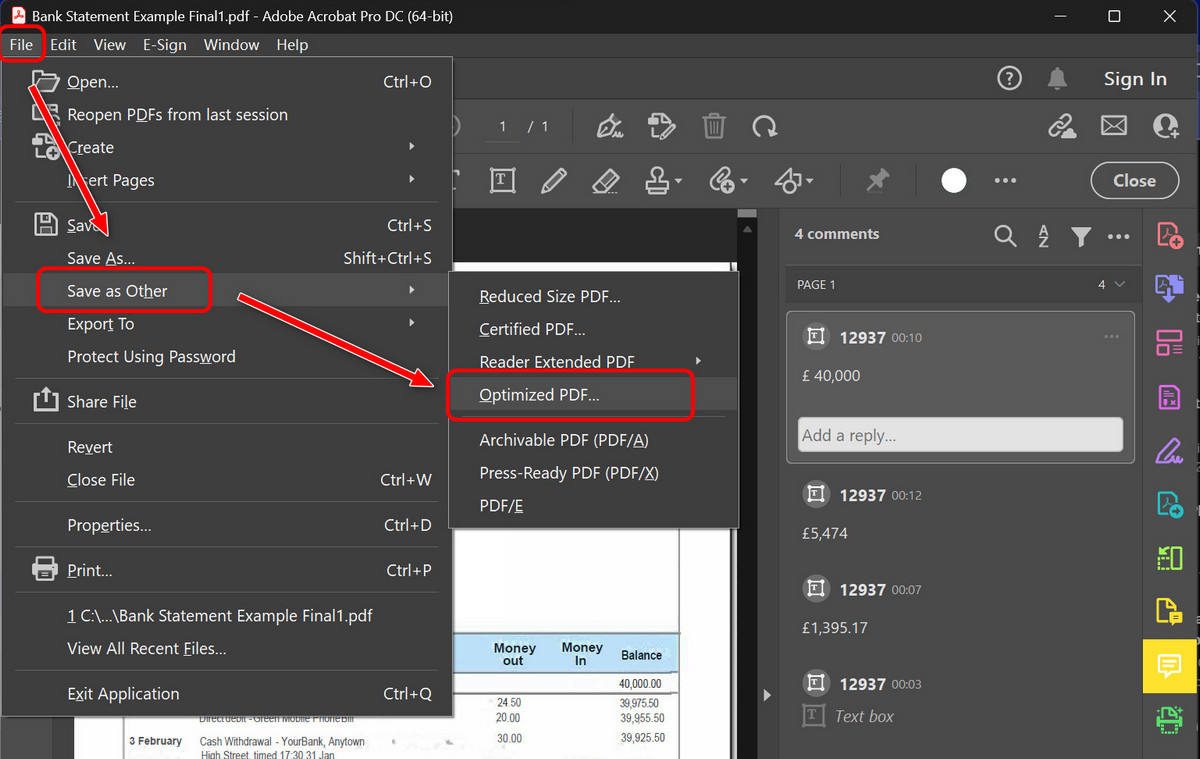
Open the PDF Optimizer
Step 3. Flatten Form Fields
In the PDF Optimizer options, select Discard Objects to see the Flatten form fields option. Check the box next to it and click OK to apply the changes.
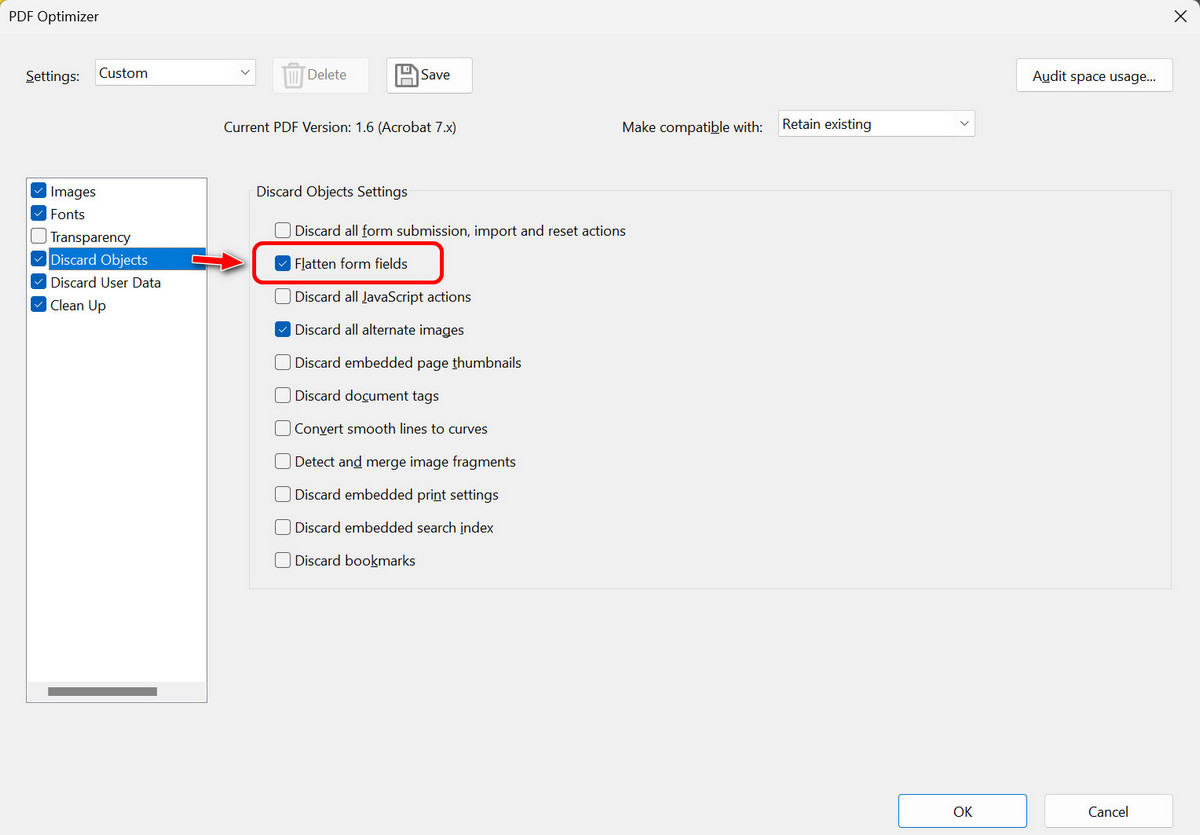
Flatten Form Fields with Acrobat
Adobe Acrobat’s flattening feature is more flexible compared to other tools. In addition to fixing form fields, other dynamic elements in the file, such as comments, hyperlinks, and signatures, can retain their original interactivity and editing permissions.
Use Adobe Acrobat’s Restrict Editing Feature
In addition, Acrobat offers the Restrict Editing feature, which allows you to limit others’ ability to edit, copy, and print PDF files. This feature helps you better control editing permissions and protect the integrity of the file content.
Step 1. Select the Protect feature in Acrobat
After opening Adobe Acrobat, go to the Tools section and choose Protect. Then click Open > Select a File to upload the PDF file.
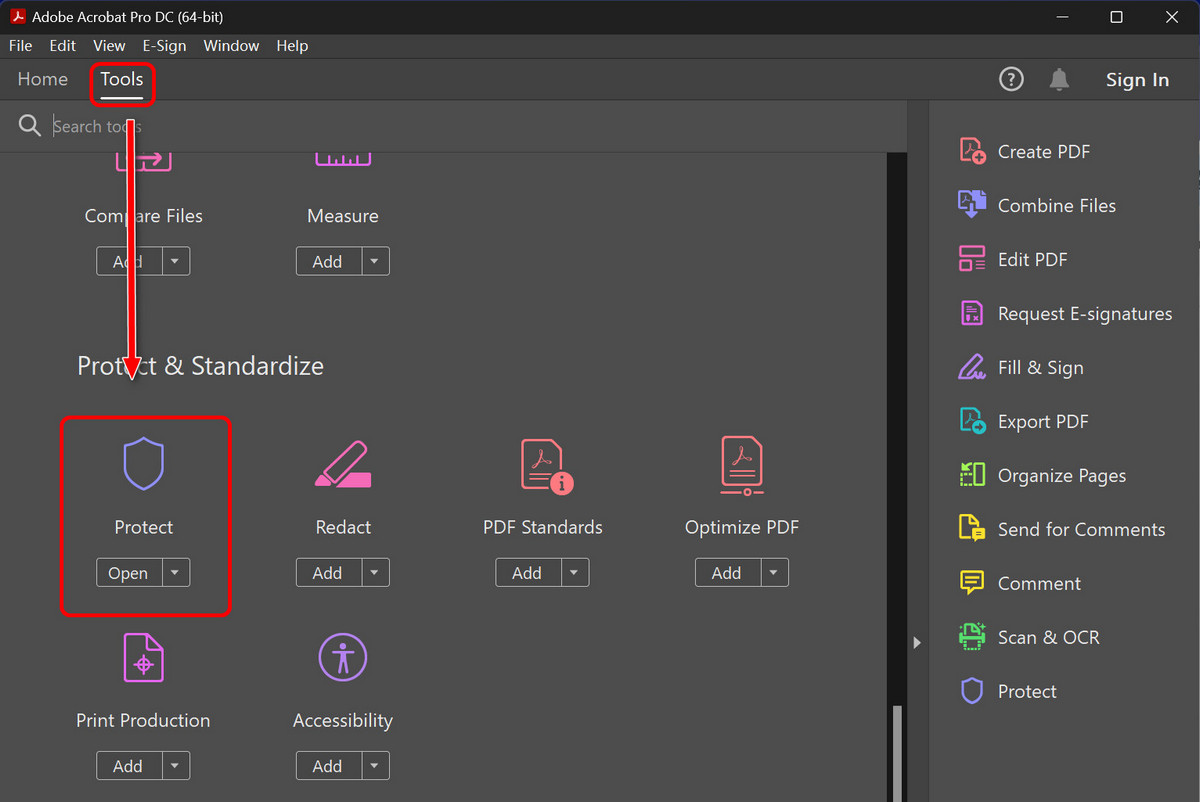
Open PDF File with Acrobat
Step 2. Set an Editing Password
Click on Protect Using Password, then choose Editing to set a password. If you prefer not to use a password, you can modify the settings in Advanced Options to use Encrypt Certificate instead.
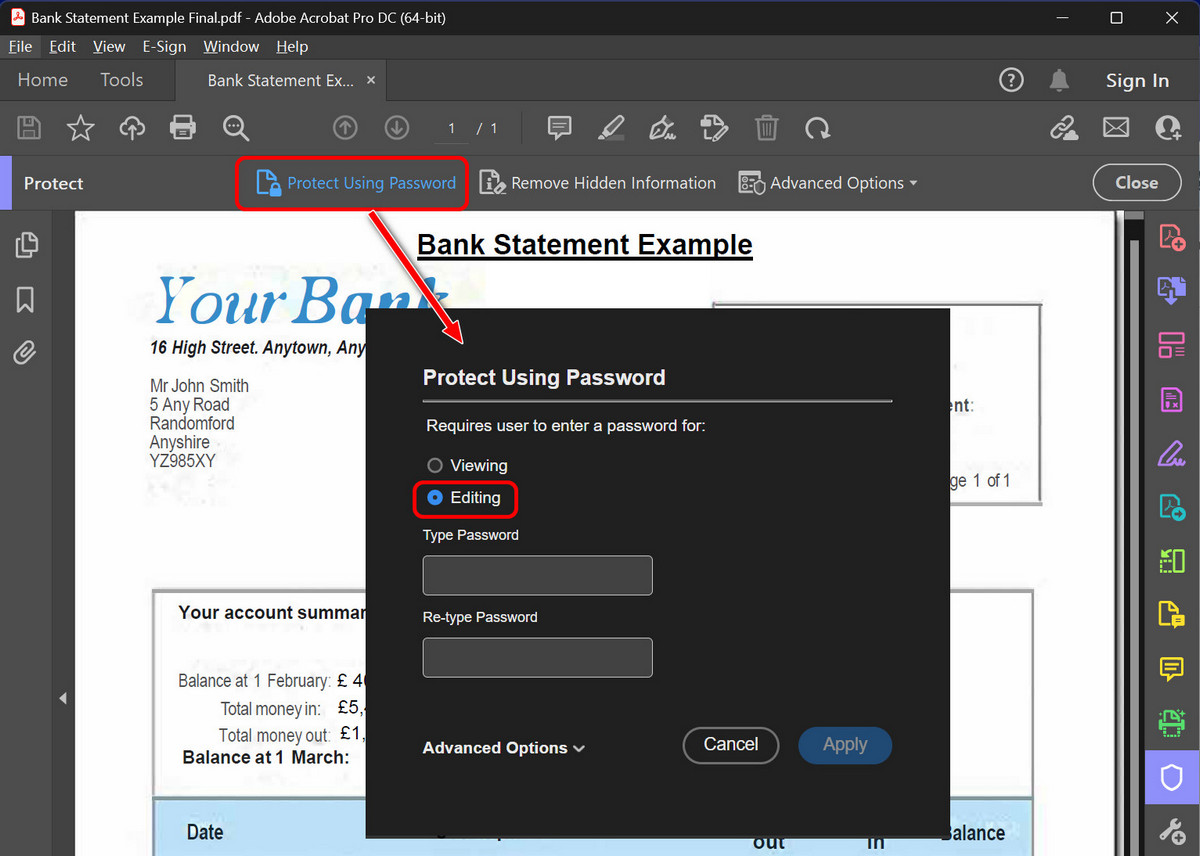
Set the Password for Editing
Acrobat’s editing restriction feature can effectively prevent others from making unauthorized modifications to PDF content, protecting the original state of the file.
Set the PDF to Read-Only
Another way to make an editable PDF file non-editable is by setting it to read-only through the operating system’s file properties. Both Windows and Mac systems have built-in functions to do this.
For Windows: Right-click the PDF file and select Properties.Then, in the pop-up dialog, check the Read-only option. Click OK to apply the changes.
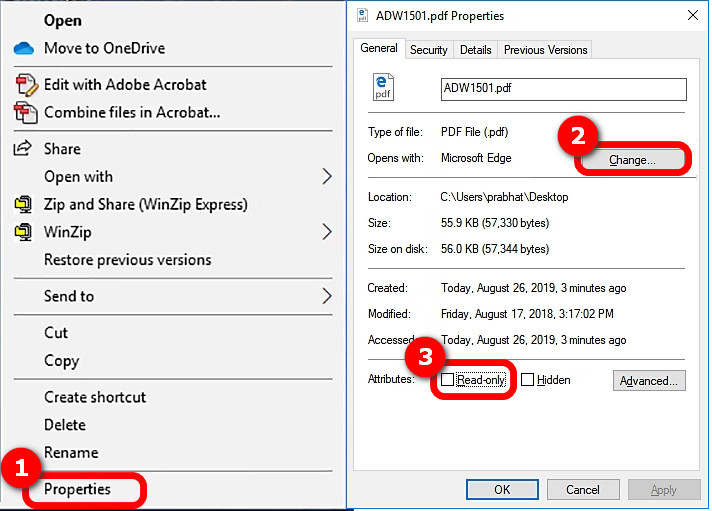
Set the PDF to Read-Only on Windows
For Mac: Right-click the PDF file and select Get Info. Then, find the General section in the pop-up window and check the Locked option. At the bottom in Sharing & Permissions, adjust the privileges to restrict editing.
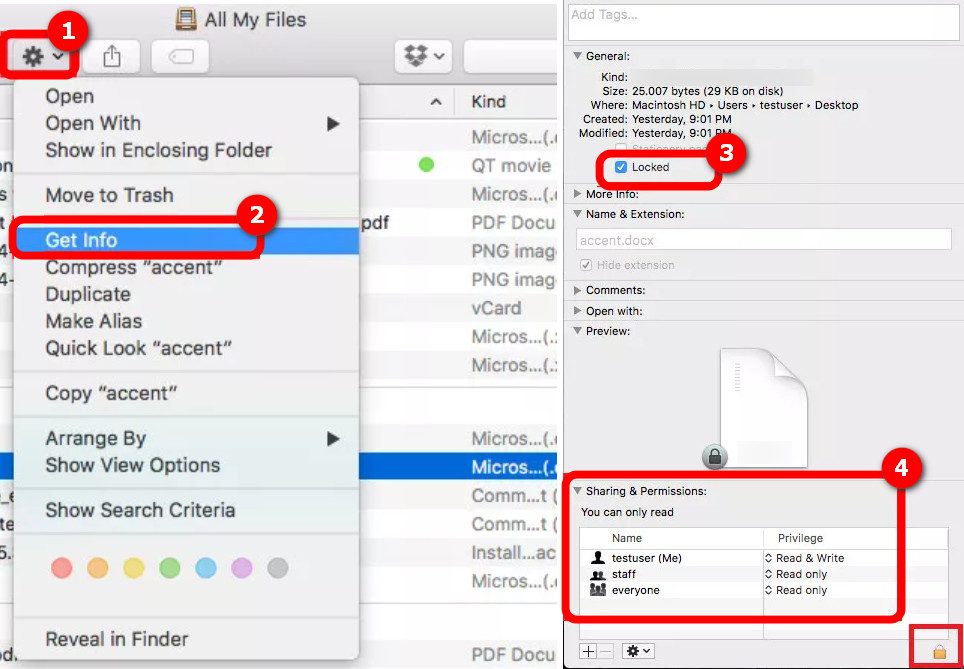
Set the PDF to Read-Only on Mac
This setting will make the PDF file read-only, preventing most users from making modifications. However, it’s important to note that this is not an absolute protection; some advanced editing tools might still bypass this restriction.
Password-Protect the PDF for Free
To ensure the security of your PDF files, you can also use PDF encryption. With PDFgear Software, you can easily set password protection for your PDFs to ensure authorized access. PDFgear Software is a free PDF editor for Windows and Mac that allows you to easily edit PDFs and add watermarks, signatures, and stamps to ensure the uniqueness of your files.
Step 1. Upload the PDF File
Open PDFgear Software, click Open File, and select the file you want to encrypt.
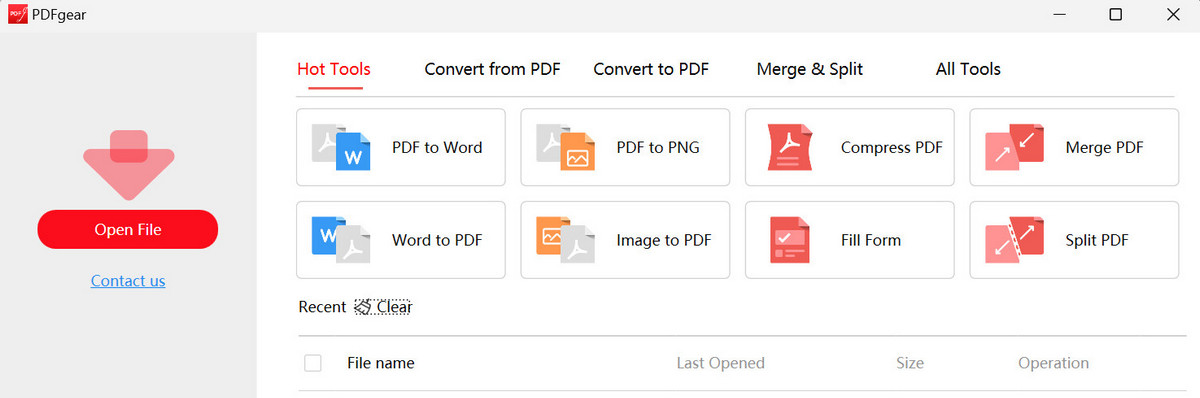
Upload PDF File to PDFgear Software
Step 2. Select the PDF Password Tool
Once the file is open, go to the Tools tab and select Password to access the password settings.
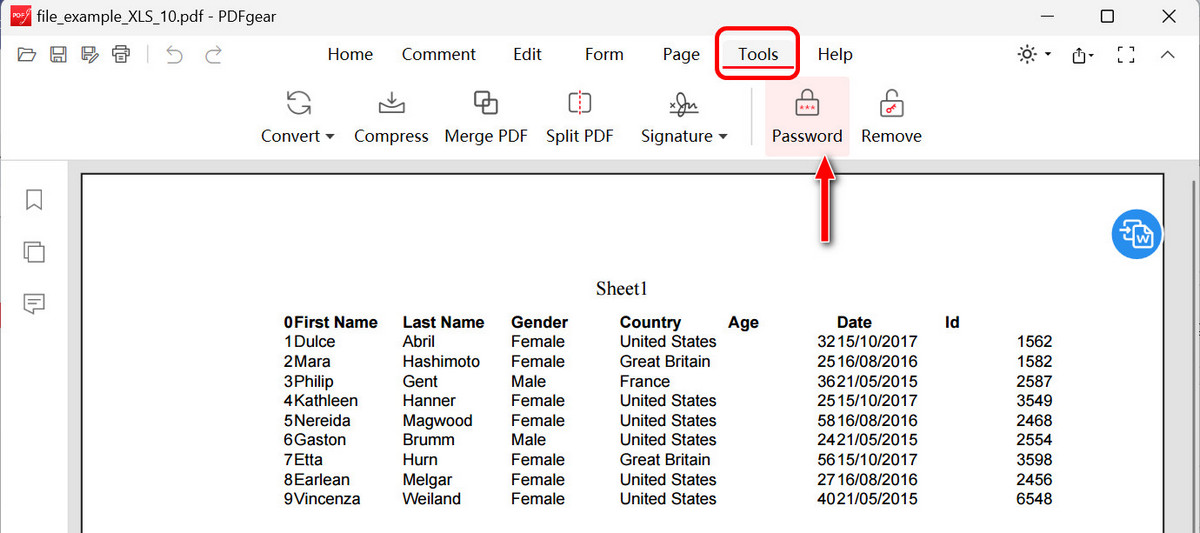
Open Password Tool in PDFgear
Step 3. Set the PDF Password
A settings dialog will appear where you can enter the desired password. After confirming that the password is entered correctly, click OK to complete the password setup.
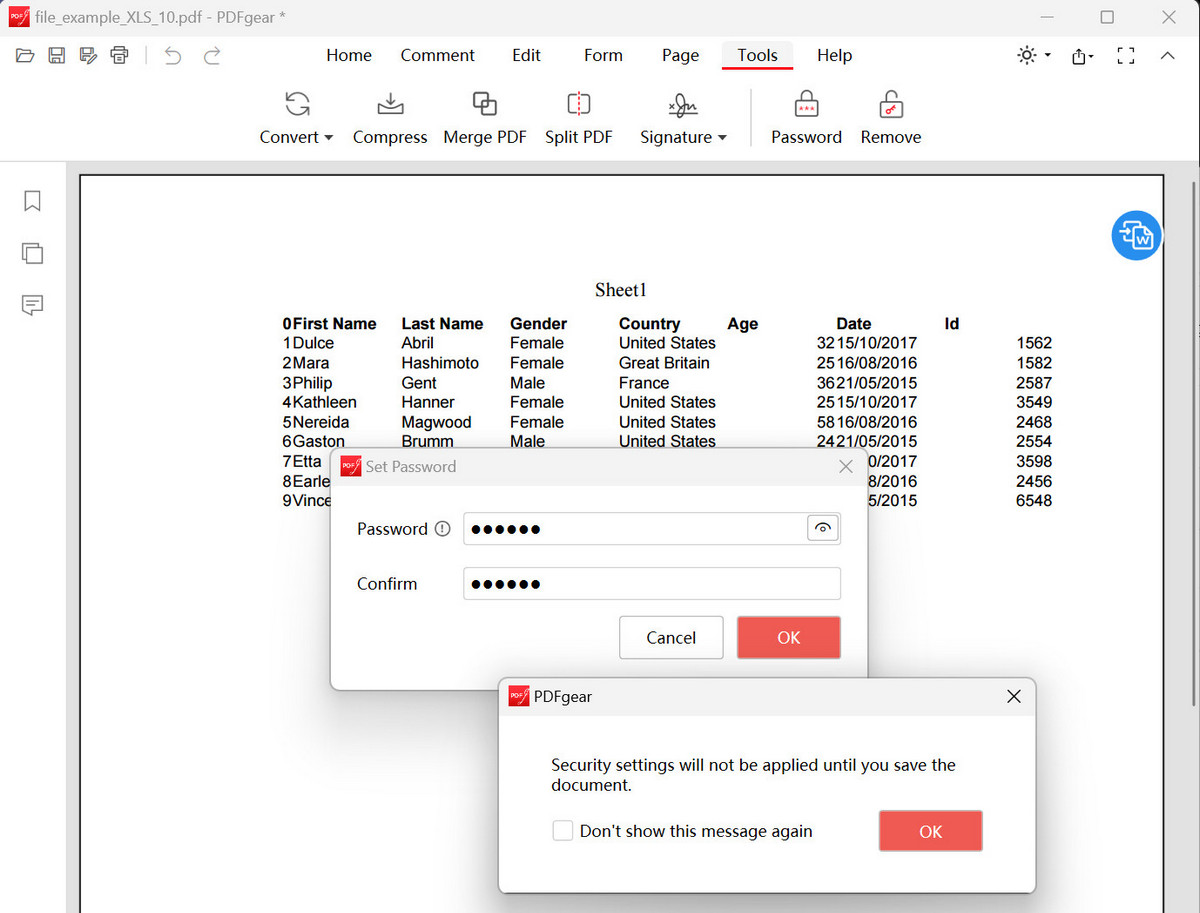
Set the Password for PDF with PDFgear
While PDFgear’s open password can restrict unauthorized access, it does not completely ensure that the PDF file cannot be modified. However, setting permissions passwords can further enhance file protection. Especially during file transfer, encryption effectively prevents information leakage or interception.
Conclusion
In this article, I’ve introduced five methods for converting editable PDF files into non-editable ones, including using encryption protection, flattening, read-only settings, and other effective techniques.
Each method has its unique advantages and applications. You can choose the most suitable method based on your specific needs and file types to ensure the security of your PDF files.
