How to Combine Multiple HEIC to PDF in 2 Cilcks

Summary :
This post share the methods to convert and combine multiple HEIC images to PDF file to preserve or share your nice shoots.
Table of Contents
Combining multiple HEIC files into a PDF is a practical solution for organizing photos, crafting presentations, or compiling documents.
This guide will walk you through 2 free methods to merge HEIC images into a single PDF, addressing common concerns like maintaining image quality, ensuring compatibility across devices, and simplifying the process.
Combine HEIC to PDF via a Free Online Tool
A free and secure online HEIC to PDF converter, which also supports combining HEIC, would be your first choice. It works on Windows, macOS, Linux, and mobile devices.
Meet PDFgear HEIC to PDF Converter. It can not only convert HEIC to PDF but can also combine multiple HEIC pictures into one PDF.
It is free of charge and has no file-using limitations. You don’t need to download or install any software, just simple clicks, you will get a PDF file ready.
Step 1. Upload HEIC to PDFgear
Go to PDFgear online HEIC to PDF converter page, click the “Upload image files” button, or select the images and drop them to PDFgear.
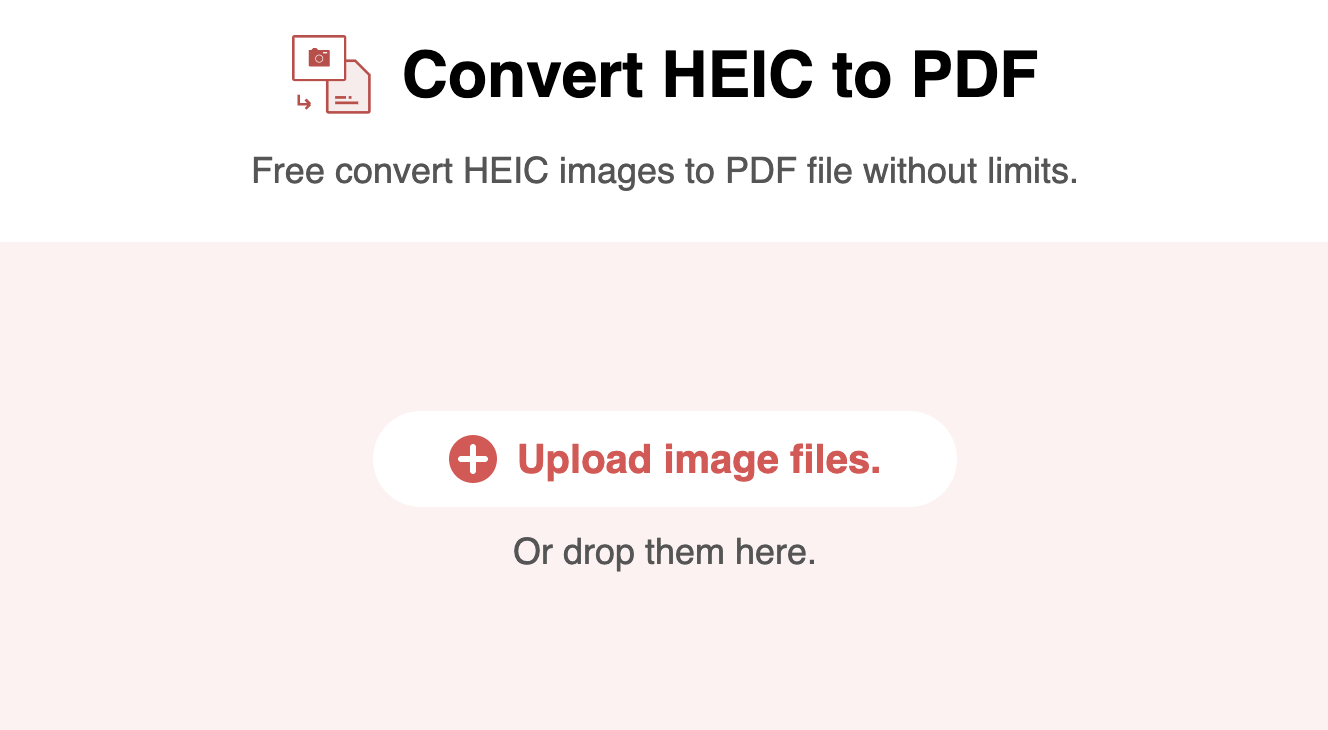
Directly Go to PDFgear Online HEIC to PDF Converter
There will be a processing window when you successfully upload HEIC images to PDFgear.
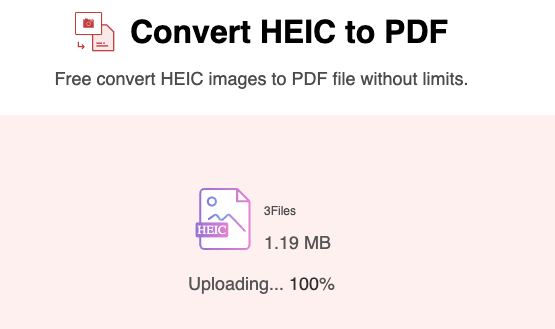
Uploading HEIC Images to PDFgear Online HEIC to PDF Converter
Step 2. Convert and Combine HEIC
When HEIC images were uploaded successfully, you would see there are 2 options on the screen. You can add more HEIC files, or hit the Convert button on the top of the HEIC images to process the HEIC to PDF conversion and combination.
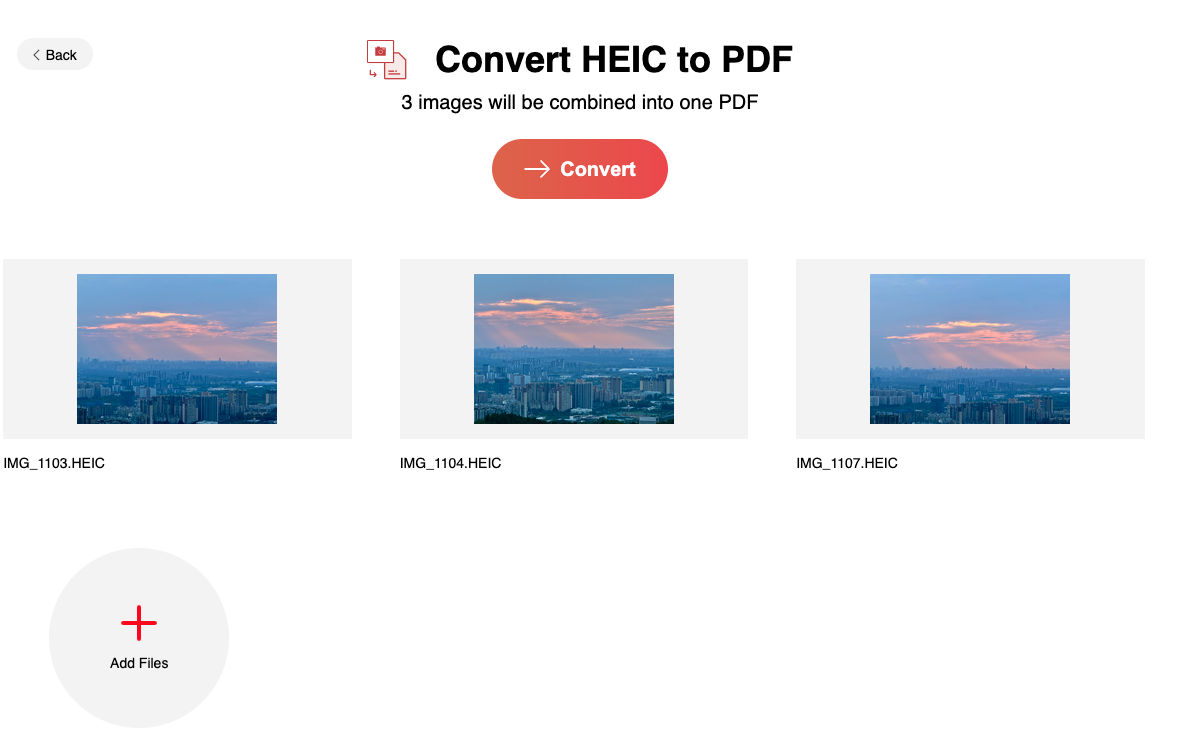
Convert and Combine HEIC to PDF
Step 3. Save the PDF file
The HEIC files will be uploaded and converted to PDF automatically. Once it’s finished, click on the “Download” button to save the PDF to your computer.
That’s it! You can now view or edit the PDF on your computer just like any other PDF file.
How to Combine HEIC to PDF on Mac with Preview
For individuals looking for a free way to convert and combine HEIC files into PDF format on Mac, the Preview application is one of your best choices.
No need to download any third-party HEIC to PDF converter, the Preview application can combine HEIC to PDF tasks.
Step 1. To combine HEIC images, first select all the images you want to combine and right-click to open with Preview.
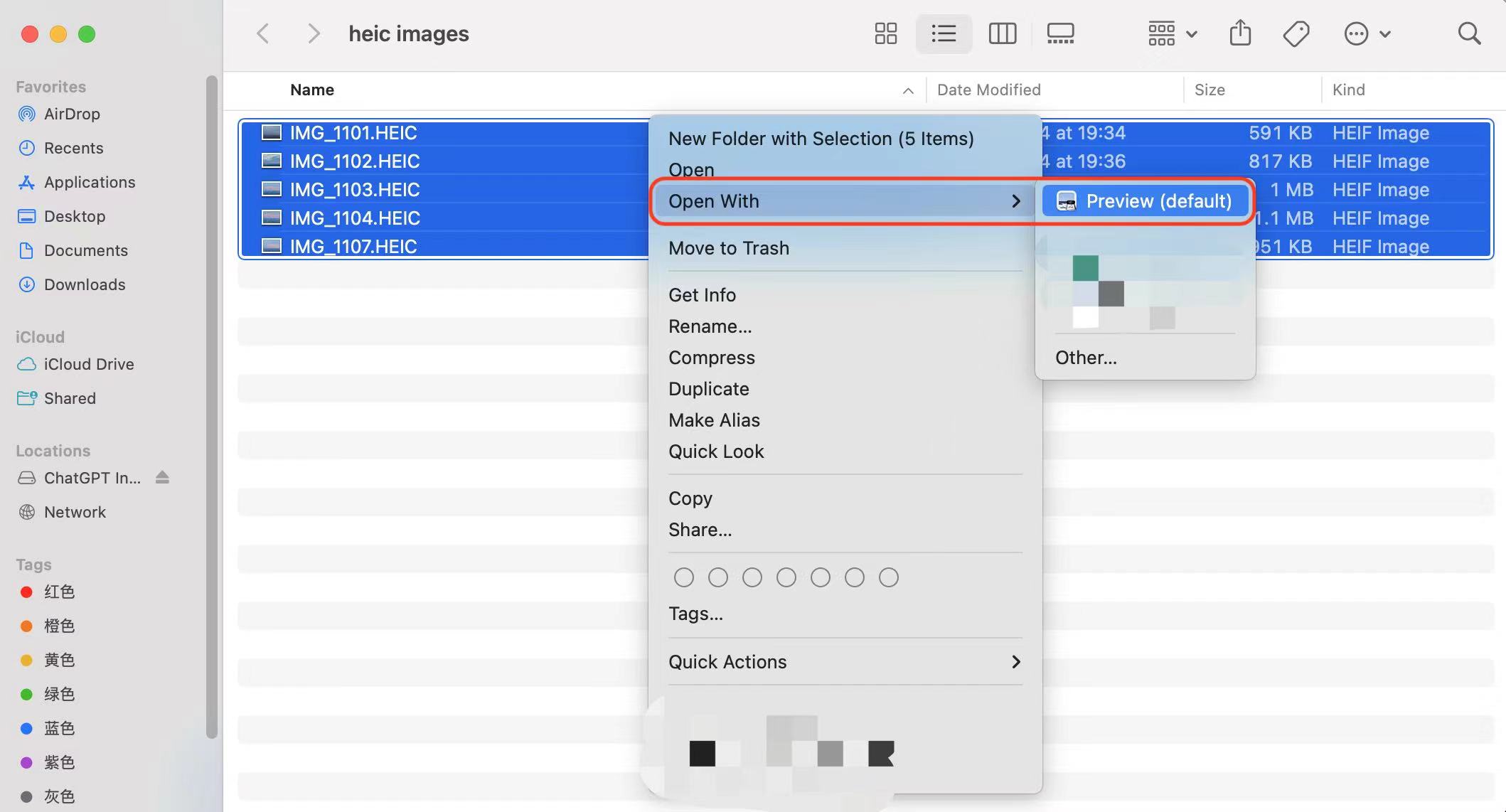
Open HEIC Images with Preview
Step 2. Now press the Command+P and a window will pop up showing all the settings where you can print the images. Press Command + A to make sure you have selected all the HEIC images you want to combine.
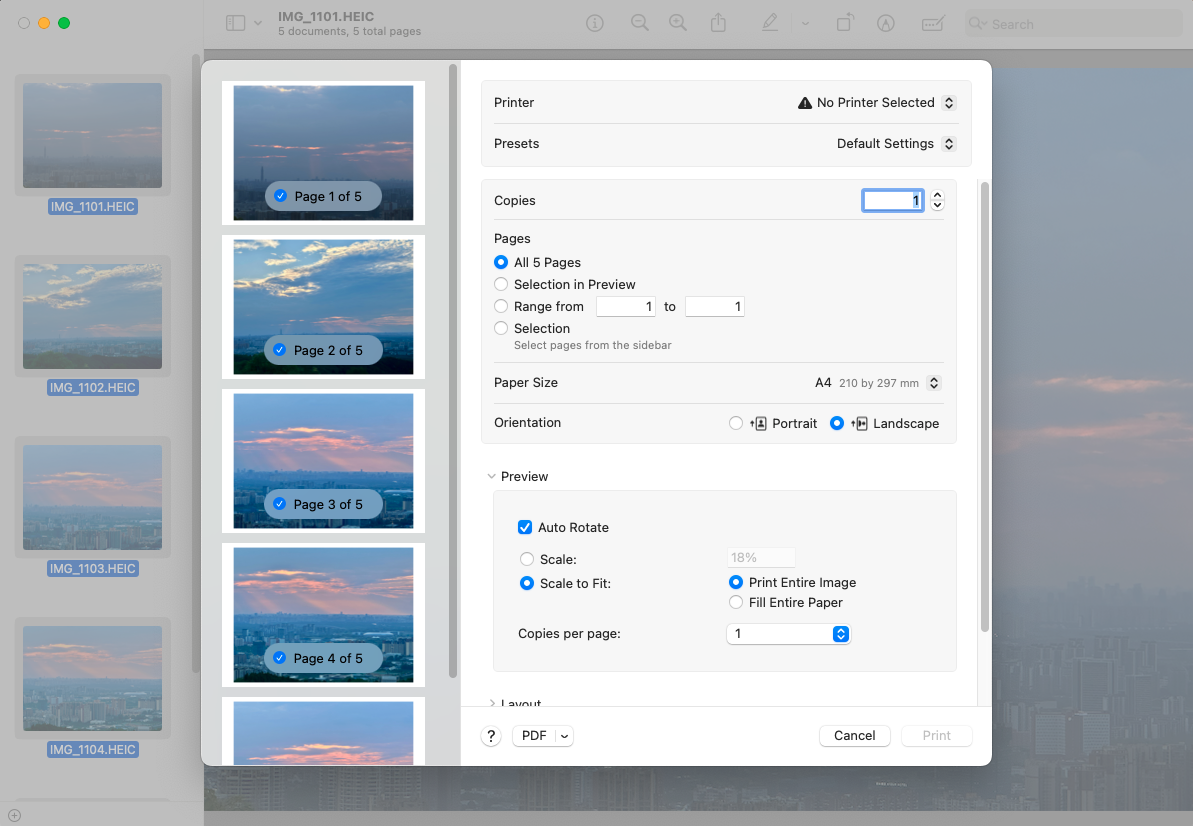
Print the HEIC Images
Go to the PDF at the end of the page, and there will pop up a window and you now need to click the Save as PDF…
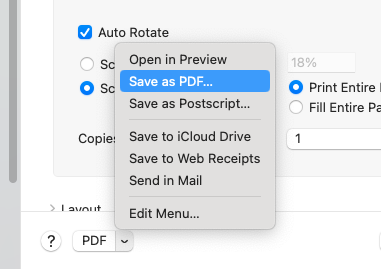
Choose the PDF and Select Save as PDF
Step 3. After you hit the Save as PDF… button, the path settings will come to you. Choose a place to save the PDF files on your MacOS.
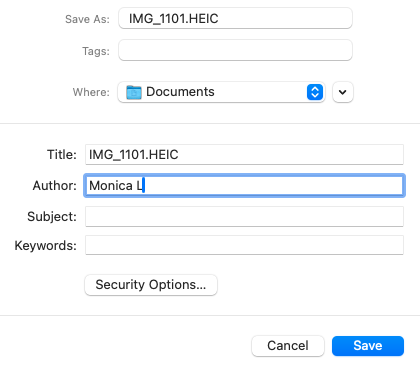
Set Your File Save Path
Step 4. Finally, tap on the file option and save to combine all the converted PDF files from HEIC into one PDF file.
Combine HEIC to PDF FAQs
1. What is a HEIC file?
HEIC stands for High Efficiency Image File Format. It’s primarily used by Apple devices for storing photos with high quality in smaller file sizes compared to traditional formats like JPEG.
2. Will converting HEIC to PDF affect the image quality?
Converting HEIC images to PDF should not degrade the quality. The PDF format can maintain the high resolution of HEIC images, ensuring they look crisp when viewed on different devices.
3. Can I combine HEIC files into a PDF on a Windows PC?
Yes, using PDFgear online HEIC to PDF tool will solve this issue in just 2 clicks.
Conclusion
So there you have it – a complete guide on how to combine HEIC files into a PDF. Whether you’re using Windows, Mac, iPhone, or Android, there’s an easy way to make it.
Just follow the steps in this article and you’ll be able to merge your HEIC files into a single PDF in no time.
