Make a PDF Read Aloud: Top Tools and Tips

Summary :
This article explores three tools for reading PDFs aloud, comparing the features of Microsoft Edge, PDFgear, and Adobe Acrobat to suit different user needs.
Table of Contents
Read PDF Out Aloud
Users with visual impairments or reading difficulties can use text-to-speech (TTS) to access important information in PDF files. Additionally, reading large amounts of text on a screen for extended periods can cause eye strain, so listening to the text can be a more comfortable alternative.
If you’re looking for an app that can read PDF files aloud, this article will help. We’ll introduce three text-to-speech apps that make it easy to read long PDF documents and offer a convenient listening experience.
Read PDF Out Loud Free with PDFgear
PDFgear functions as a PDF voice reader, allowing users to add more voice languages to meet the needs of different language speakers. Compared to traditional PDF audio readers, PDFgear offers more options for working with PDFs.
This completely free PDF editor integrates powerful features like adding annotations, comments, and bookmarks to PDF. With PDFgear, users can listen to a PDF while making notes. It supports not only PDFs but also other formats like Word, Excel, and PowerPoint, offering document conversion and reading across multiple formats.
Step 1. Open the PDF in PDFgear
Download and install PDFgear software on your device.
PDFgear reads PDFs aloud with natural-sounding voices. It’s completely free; download it to try!
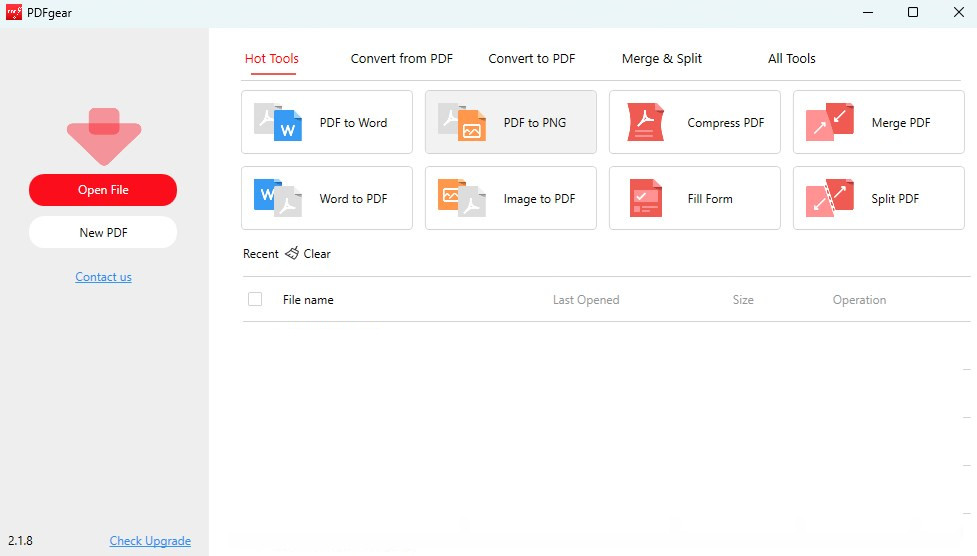
Launch PDFgear and open the PDF document you want to be read aloud.
Open PDF to Read Out Aloud in PDFgear
Step 2. Activate the Read Aloud Feature
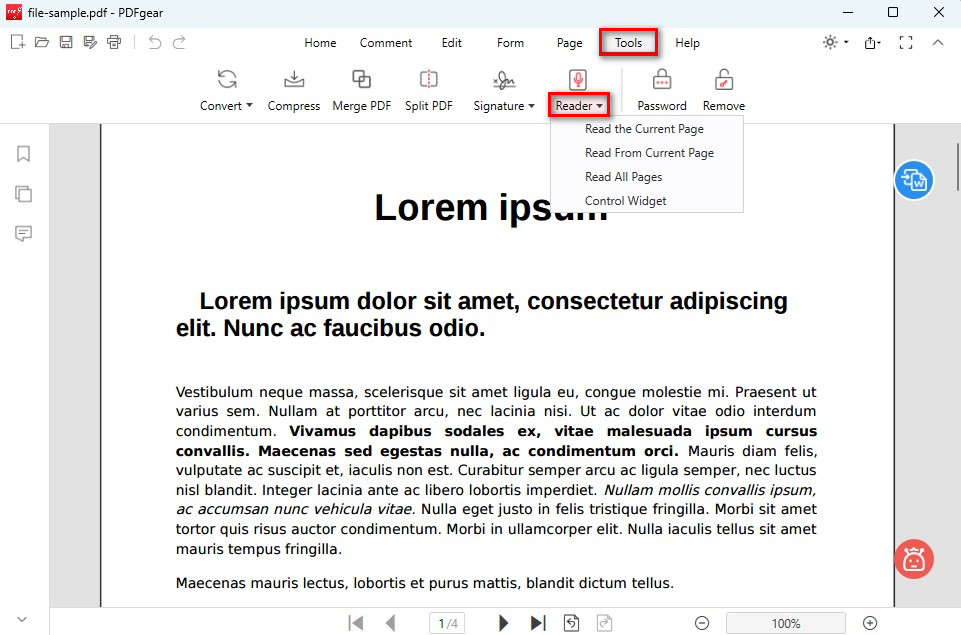
Go to the “Tool” menu at the top of the window, and select “Reader” to open the PDF audio reader.
Open the Text to Speech PDF Reader
You can choose What to Read, including read the current page aloud and read all pages aloud.
Step 3. Control the Reading
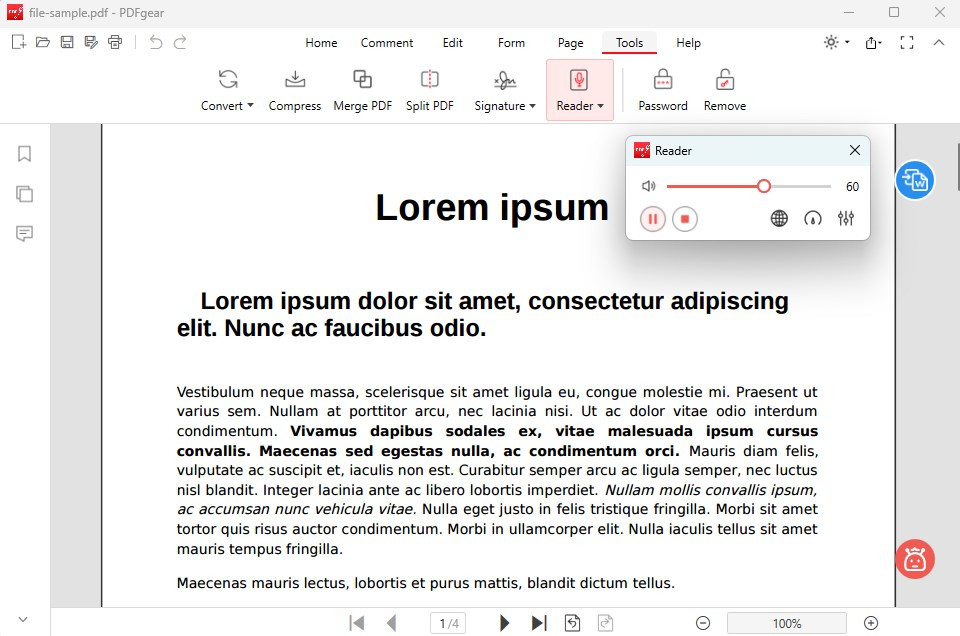
There is a control widget that allows you to pause or stop the reading at any time by simply clicking the appropriate buttons. You can also choose different reading voices or add more voice options from the control widget.
Start and Stop Reading
The PDF reading feature is currently only available in the Windows version of PDFgear, but it will soon be available for the Mac version.
Read Aloud PDF Online with Microsoft Edge
Microsoft Edge comes with a built-in Read Aloud tool that works seamlessly with PDF files, so there’s no need to install any additional software.
It offers a range of natural voices, with options for different accents and languages. You can also adjust the reading speed. While reading aloud, the text is highlighted, making it easier for users to visually follow along.
Step 1: First, ensure Microsoft Edge is set as your default PDF reader, or right-click the PDF file and select “Open with Microsoft Edge.”
Step 2: Click on the three dots in the toolbar at the top right and select ‘Read Aloud’ from the dropdown menu.
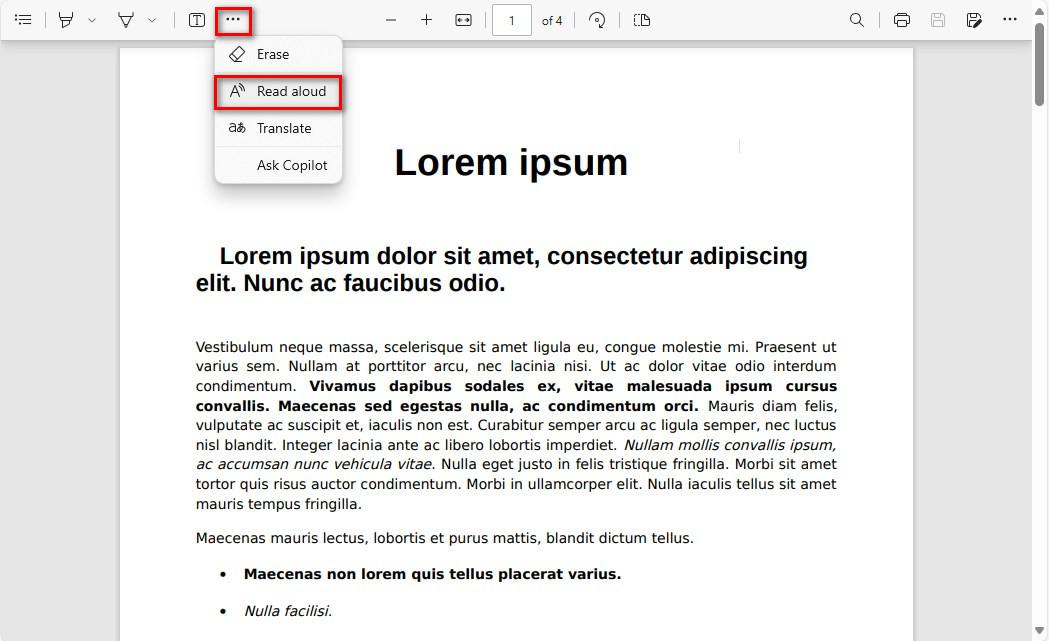
Select Read Aloud in Microsoft Edge
Alternatively, press the shortcut Ctrl + Shift + U, and Edge will automatically begin reading the text from the top of the current page.
Step 3: A control bar will appear at the top of the screen, allowing you to play/pause, skip to the next paragraph, or go back to the previous one.
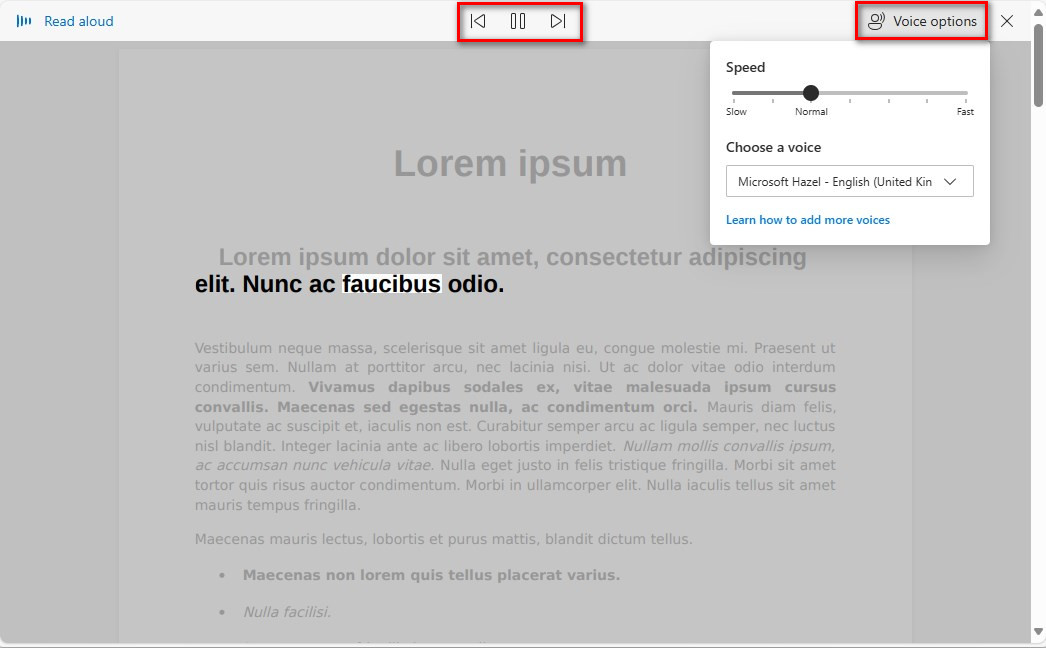
Read Aloud a PDF in Microsoft Edge
Step 4: If you want to change the reading voice, click the “Voice Options” button on the control panel. Here, you can choose different voices and adjust the reading speed.
Overall, Microsoft Edge is great for light, everyday PDF document reading needs. However, it lacks professional PDF editing tools and cannot provide in-depth document interaction.
Read a PDF Aloud in Adobe Acrobat
Both Adobe Acrobat Reader and Adobe Acrobat Pro let you use the read-aloud feature. Adobe Acrobat Reader is free, so you can easily download it and start using the reading option. However, Reader doesn’t include some of the advanced editing and annotation tools found in the Pro version.
Adobe Acrobat Pro, which costs $19.99 a month, not only reads PDFs out aloud but also offers powerful tools for converting, editing, and annotating PDFs, making it great for professional users. The steps to use the read-aloud feature are similar in both versions. Here’s how to do it in Adobe Acrobat Pro:
Step 1: Launch the Adobe Acrobat Pro application. Click File > Open and select the PDF file you want to read aloud.
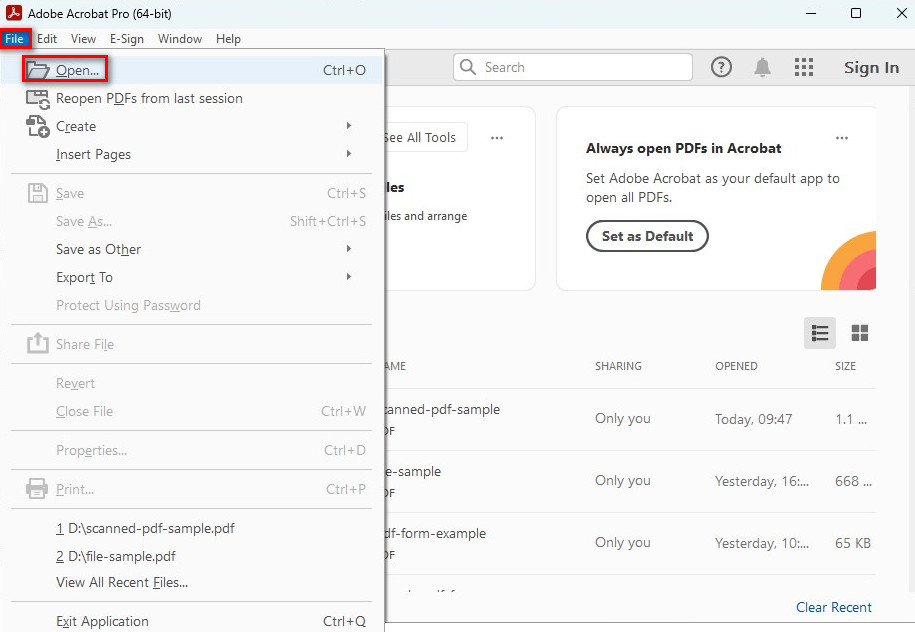
Open a PDF in Acrobat Pro
Step 2: In the menu bar, select View. Click Read Aloud, then choose Activate Read Aloud.
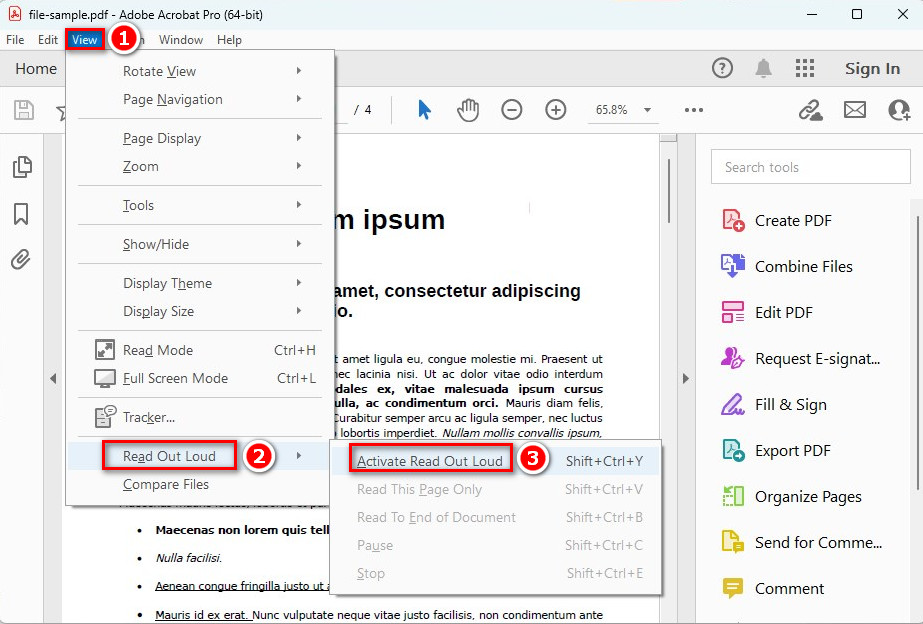
Activate Read Out Aloud
Step 3: Go back to View > Read Aloud.
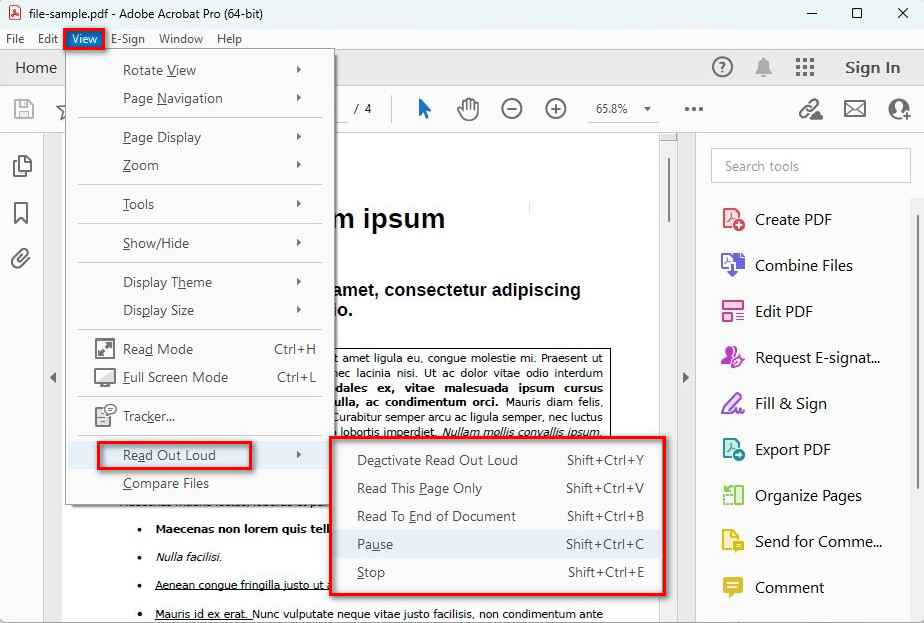
Read Aloud PDF File in Adobe Acrobat
You can choose Read This Page Only to read the current page or Read To End of Document to read the entire document.
Step 4: You can use the same menu to pause or stop the reading process.
Additionally, Adobe Acrobat Pro supports reading aloud specific text sections within a PDF file.
Conclusion
In summary, all three tools offer the basic read-aloud feature. However, Microsoft Edge falls short for users who require more advanced PDF editing capabilities.
Both PDFgear and Adobe Acrobat include built-in professional editing tools, enabling users to interact more comprehensively with documents. The key difference between the two is that Adobe Acrobat is a paid service, while PDFgear is free.
