How to Print a Secured PDF without Password

Summary :
This article shows you how to print a secured PDF document without password. For PDF with different protection methods, 3 effective solutions are shared.
Table of Contents
There are two types of secured PDFs: one with an open password to control who can view it, and another with a permission password that limits editing, copying, or printing.
That means you either need to unlock PDF without password, or print the PDF while bypassing the restriction.
| Methods | Use Case | Price |
| iLovePDF | When you can’t open the PDF. The PDF requires a password to open it. | Free |
| PDFgear | When you can open the PDF but can’t print it due to restrictions. | Free |
| Take Screenshots | Use inbuilt screenshot feature on your device to take PDF screenshots and save the images as PDF | Free |
Unlock a Secured PDF Online for Free
If you can’t open the PDF, iLovePDF is a free and popular service that allows you to unlock secured PDFs without knowing the password.
Then you can easily print the PDF as you normally would.
Step 1. Go to iLovePDF PDF unlocker tool, click Select PDF file to open the secured PDF.
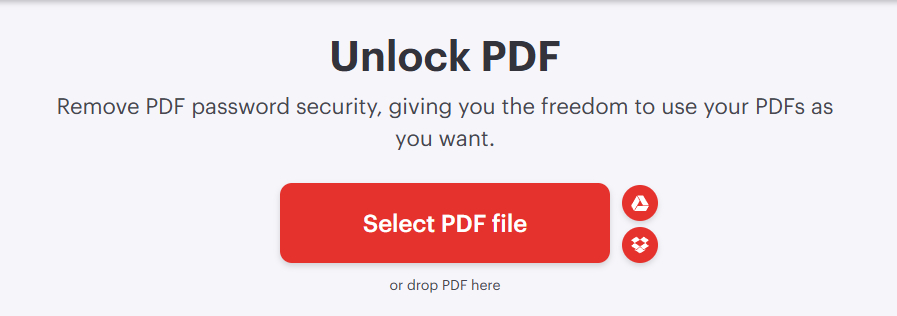
Select PDF
Step 2. Click the Unlock PDF button in the lower-right corner.
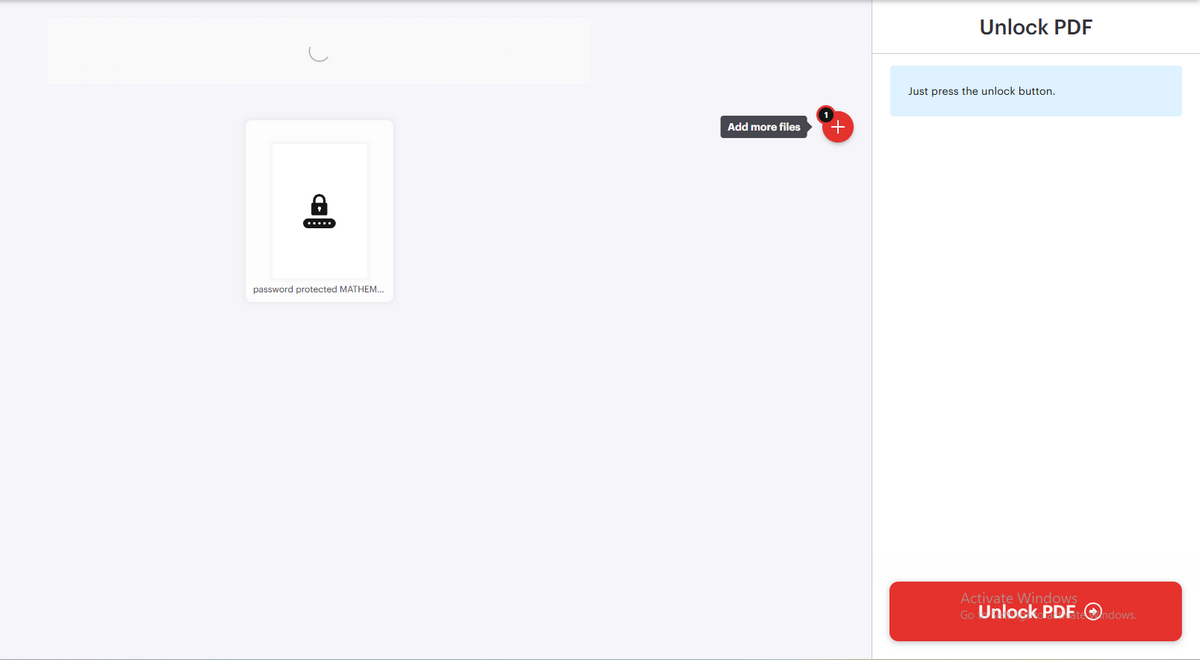
Click Unlock
Step 3. Lastly, click Download unlocked PDFs button to get the unlocked PDF.
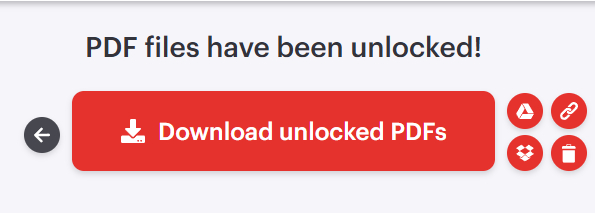
Click Download
Note that iLovePDF doesn’t guarantee to unlock any PDF, especially the ones with complex password. If iLovePDF doesn’t work for you, you can also try other online password removal services like LostMyPass.
Print PDFs with Printing Restrictions for Free
If you can open and view the PDF file but PDF printing is not allowed, then PDFgear is the solution.
With PDFgear, you can directly remove printing or editing restrictions, but make sure you have proper authorization to print the document.
Step 1. Download and install PDFgear, open PDFgear, and click Open File to open the secured PDF.
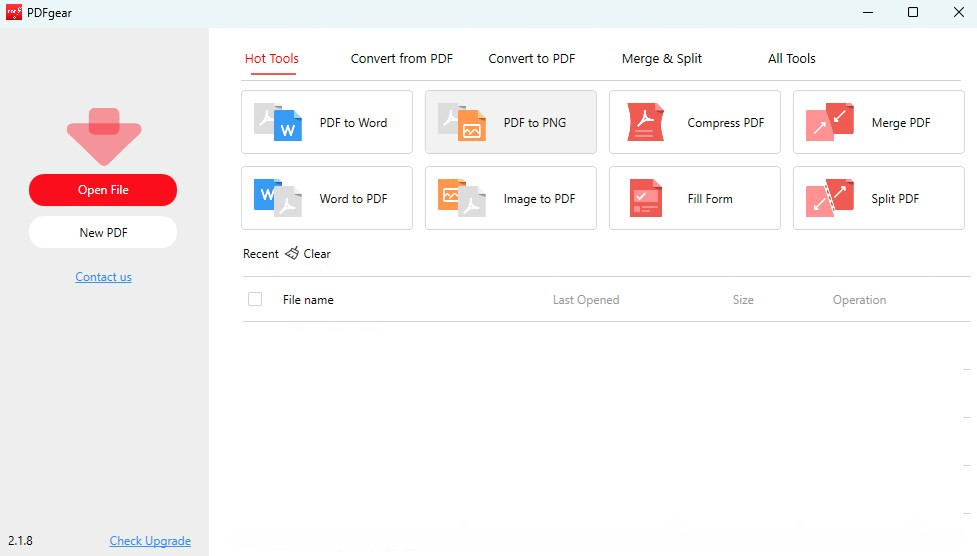
Open a PDF in PDFgear
Step 2. After the PDF file opened in PDFgear, you can see the printer icon is available. Locate and click the ‘Print’ icon in the top menu bar or use the shortcut Ctrl+P (Windows) or Command+P (Mac). This will open the printer menu.
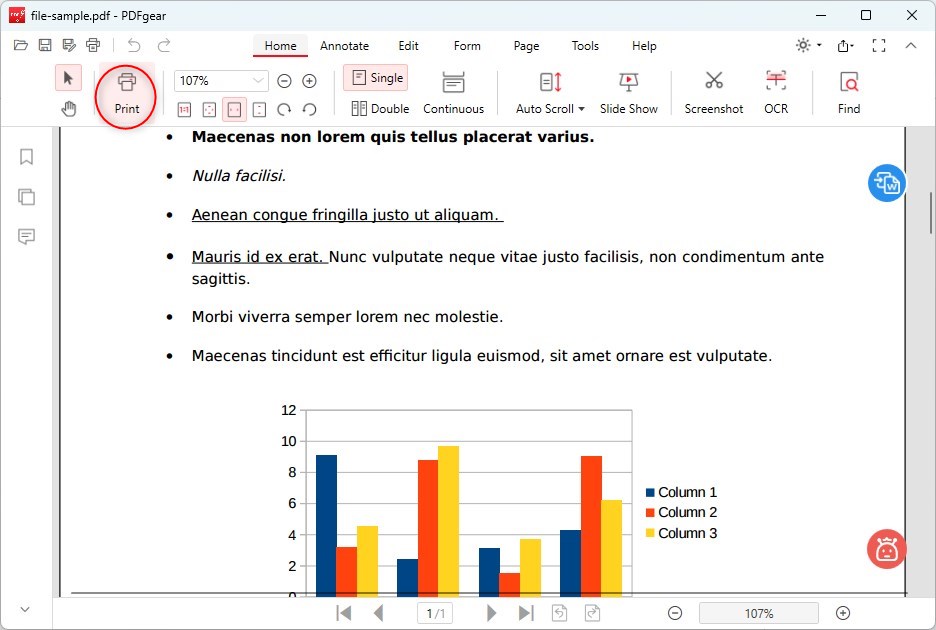
Print Icon in PDFgear
Step 3. Choose your printer and adjust the print settings as needed (e.g., number of copies, color, or black and white). Then, click the ‘Print’ button to print the locked PDF document.
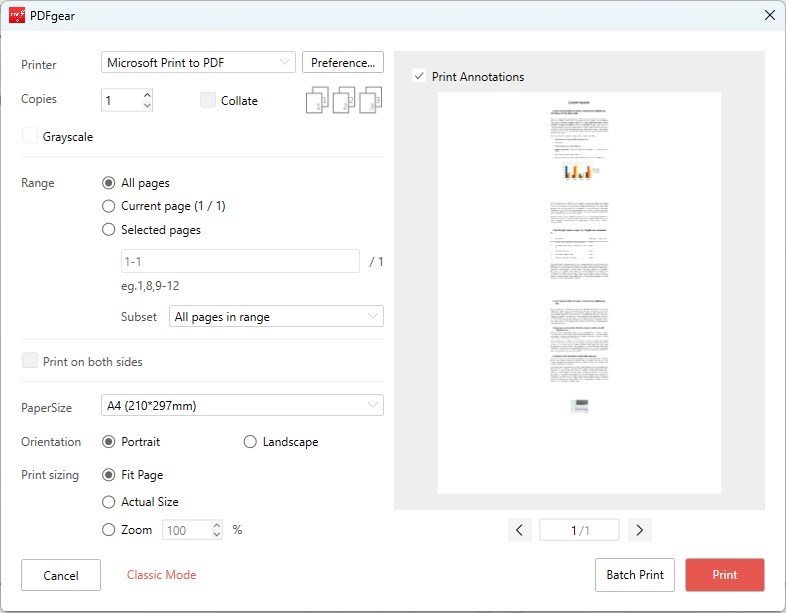
Print Password Protect PDF with PDFgear
Use Inbuilt Screenshot Tools
If you can open and view the PDF but forgot the password to remove print restrictions, you can also use the inbuilt screenshot tool on your computer to take screenshots on the document and then print the screenshot images.
Windows
1. Open the PDF in any viewer (Adobe Reader, browser, etc.).
2. Press Windows + Shift + S to activate the Snipping Tool (Snip & Sketch).
3. Click and drag to capture the desired part of the PDF.
4. The screenshot is copied to clipboard; click the notification to open Snip & Sketch.
5. Click the floppy disk icon to save the screenshot.
6. Open the image, right-click it, and select Print.
7. Adjust print settings and click Print.
Mac
1. Open the PDF using Preview or browser.
2. Press Command + Shift + 4 to enter screenshot mode.
3. Drag to select the PDF area you want to capture.
4. The screenshot is saved automatically to the Desktop.
5. Double-click the screenshot to open it in Preview.
6. Go to File > Print or press Command + P.
7. Adjust settings and click Print.
After that, you can print the screenshots using the default image viewer on your device, like Photos on Windows.
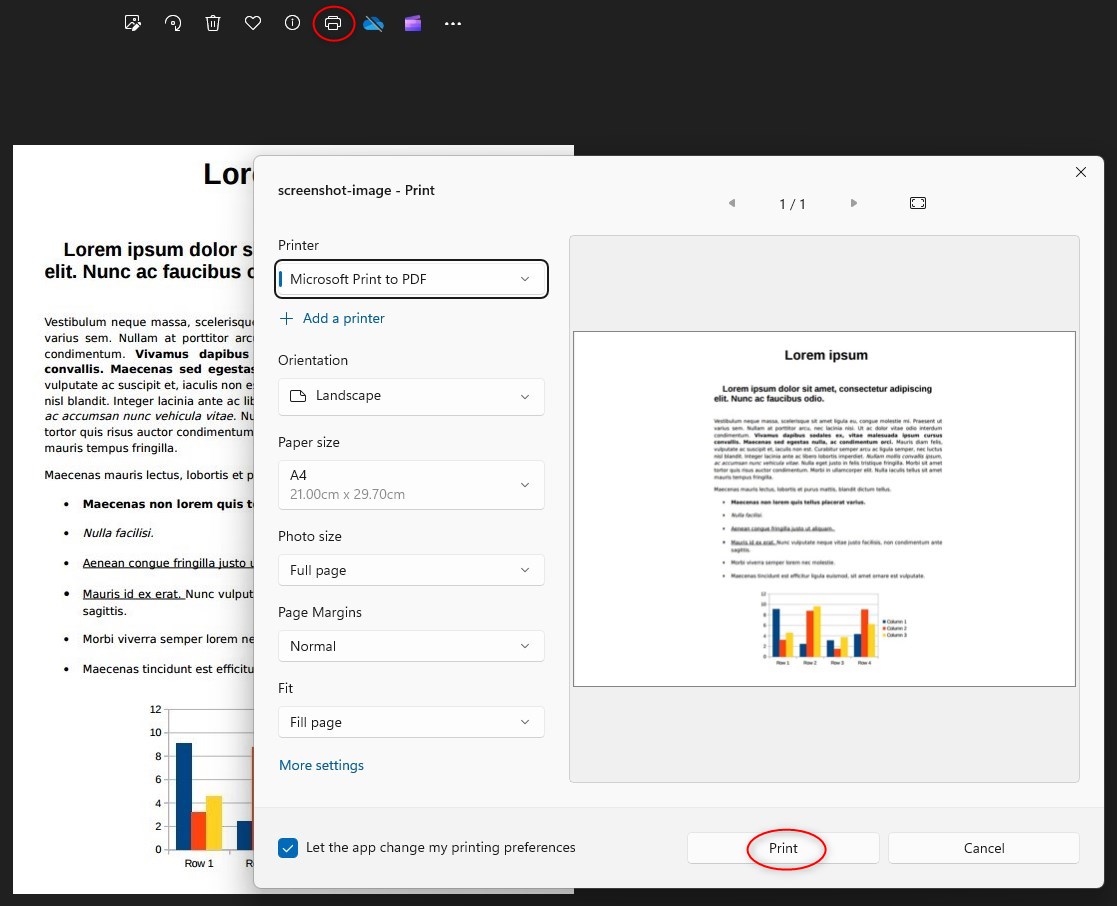
Print the Password Protected PDF Image
FAQs
What is password-protected PDFs?
There are two main types of password-protected PDFs:
Open Password Protection: Users must enter a password to open and view the PDF.
Permissions Password Protection: The PDF can be opened and viewed, but certain actions (like printing, copying, or editing) are restricted. You need the correct permissions password to unlock these features.
How can I tell if a PDF is secured?
Open the PDF in a viewer like Adobe Acrobat Reader, then go to File > Properties > Security. It will show you what actions are restricted, such as printing or editing.
Why is my printer not printing even after unlocking the PDF?
Check if the correct printer is selected, ensure drivers are updated, and verify that the PDF was properly saved after unlocking.
How do I print a secured PDF that opens in a browser but doesn’t give a print option?
Try downloading it and opening it in a dedicated PDF reader like Adobe Acrobat. Web viewers often restrict or strip print functions.
What if the “Print” button is greyed out in my PDF reader?
This means printing is disabled in the document’s permissions. You’ll need to unlock the PDF with the correct password or use authorized software to remove the restriction.
Why am I prompted for a password when I try to print, even though I can read the document?
Some PDFs have separate permissions: one to open the file, and another to print or modify. You may need a second password.
Why is the quality of the printed PDF poor or pixelated?
This might be due to low-resolution images in the PDF, or it may be printed as a bitmap or image rather than text and vector graphics.
Disclaimer: PDFgear does not support unauthorized unlocking of password-protected PDFs. Users are responsible for ensuring they have legal rights or proper authorization to access secured documents.
