How to View and Edit PDF Metadata Effortlessly

Summary :
Learn about 4 easy methods to view and edit PDF metadata including PDF titles, authors, subjects, keywords, etc.
Table of Contents
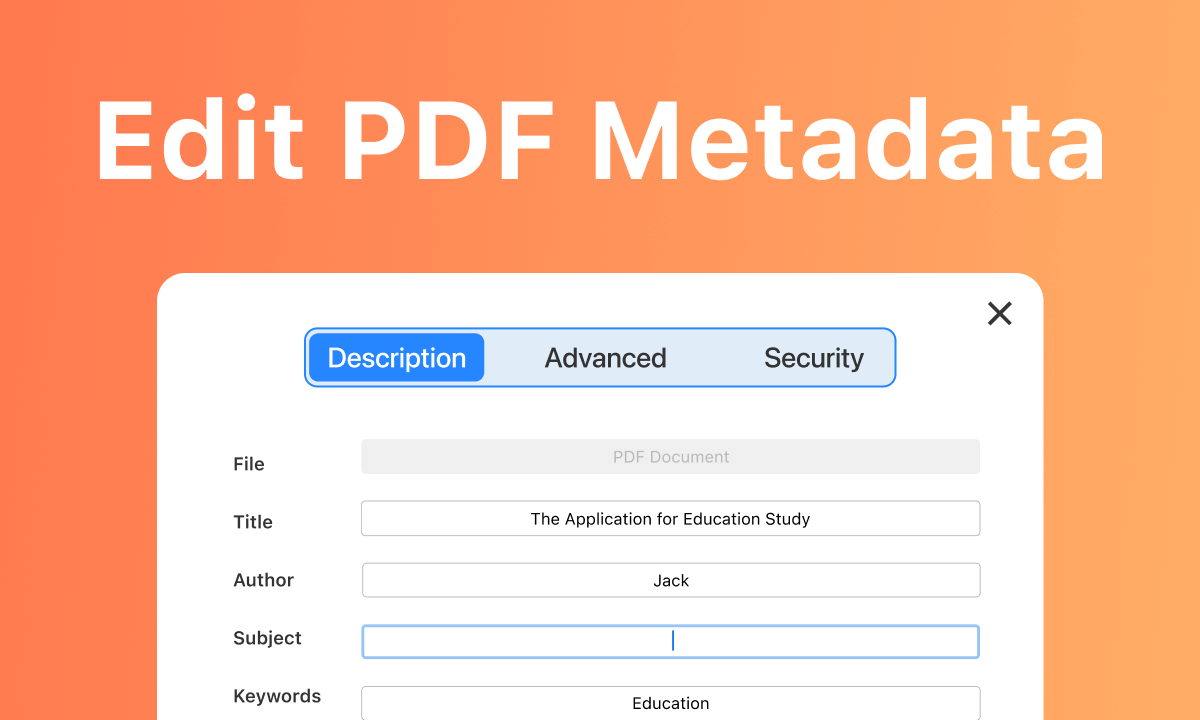
How to Edit PDF Metadata
PDF metadata, the hidden information like PDF tags, is embedded within a PDF file, including the title, author, subject, and keywords. It helps in document organization, searchability, and identification.
To view and edit PDF metadata, you’ll need a dedicated PDF metadata editor. On this page, you’ll find easy methods to edit PDF metadata on Windows, Mac, Linux, and mobile phones.
👉 You are also recommended to try PDFgear, the best free PDF editor software for computers and mobile.
Edit PDF Metadata for Free
PDFgear is a free PDF editor designed for managing and editing PDFs with ease. It offers a user-friendly interface to easily update PDF information like titles, authors, and keywords, ensuring that your PDF documents are accurately cataloged and searchable.
With PDFgear, you can quickly modify metadata to reflect the content or to standardize documents for archival purposes.
Flexibly edit PDF metadata including title, author, subject, and keywords for free.
Step 1. Download and install PDFgear, open it on your device, and click Open File to open the PDF.
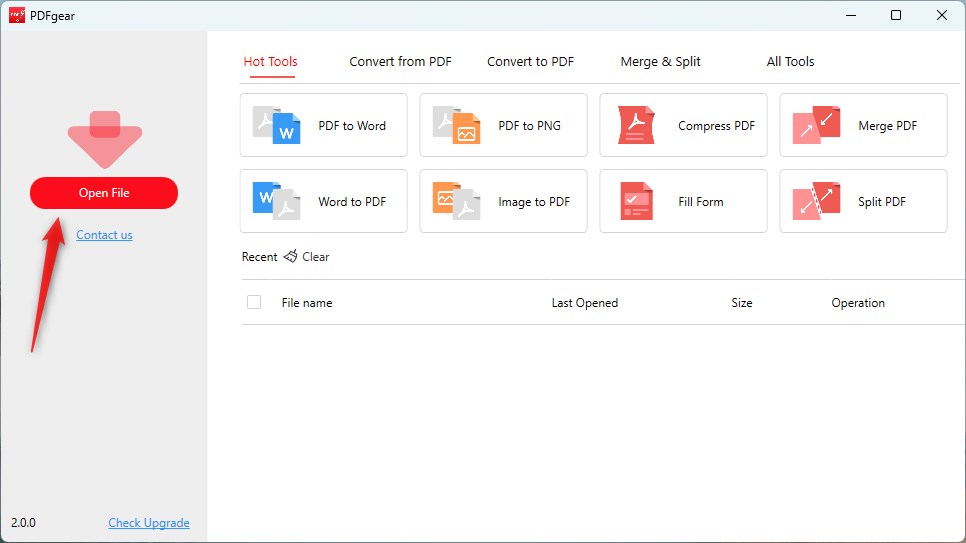
Open a PDF in PDFgear
Step 2. When the PDF file is loaded, right-click on the PDF document, and click Document Properties from the popup dropdown.
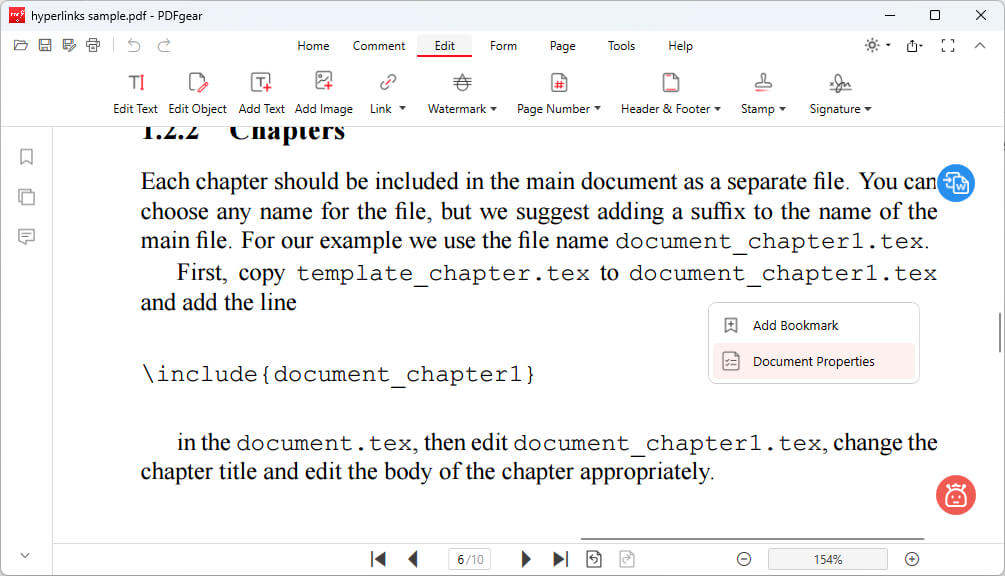
Click Document Properties
Step 3. From the Document Properties window, you can input the desired text to update the PDF’s Title, Author, Subject, and Keywords. Click OK to save changes.
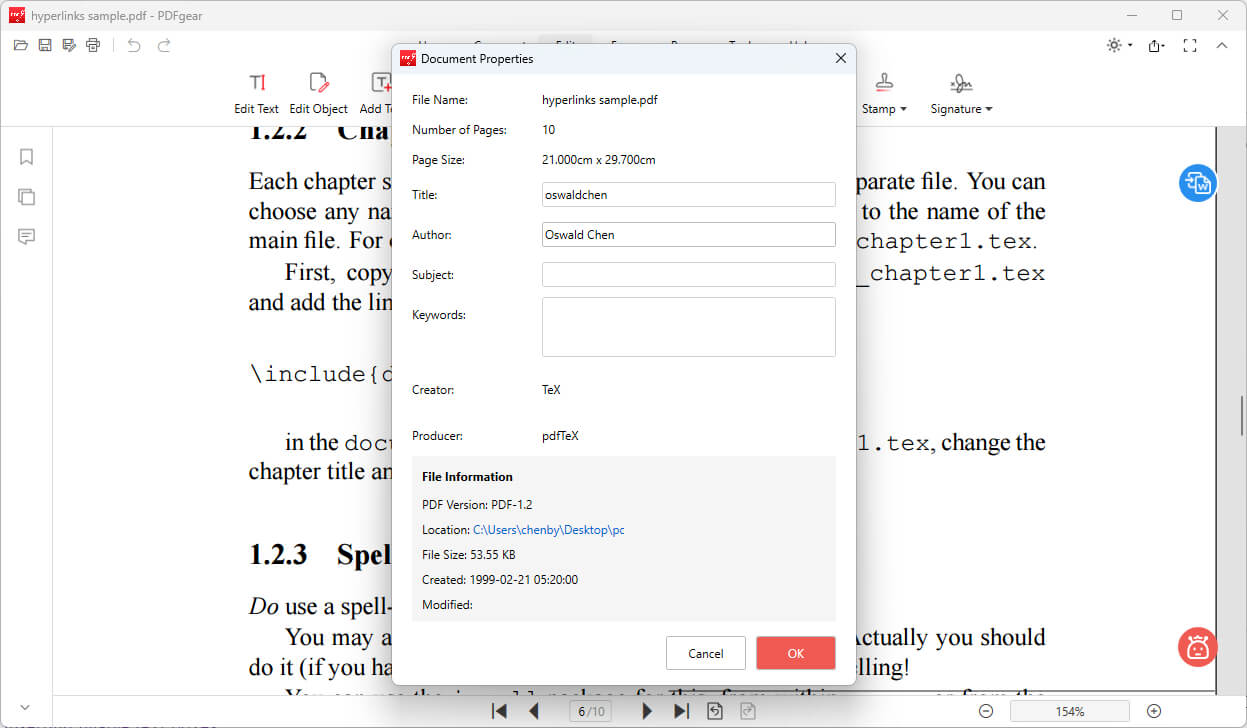
Update PDF Metadata
Step 4. As you can see, you can also check the PDF’s creator, version, created time, etc. Once finished, go to the upper-right corner to save and export the updated PDF.
Edit PDF Metadata Using LibreOffice
The best way to modify PDF metadata and other PDF editing tasks is to use a free PDF editor like LibreOffice, which works on Windows, Mac, and Linux.
LibreOffice is a free and open-source office suite, one of its components, LibreOffice Draw, allows users to perform basic PDF editing tasks, including editing PDF metadata and inserting fillable text boxes.
Regarding editing PDF metadata, LibreOffice Draw provides a straightforward and user-friendly solution. Users can easily modify metadata fields such as the title, author, subject, keywords, and comments.
Step 1. Download and install LibreOffice from the official website. Launch LibreOffice and click on the “Open File” button or go to “File” > “Open” in the menu. The PDF will open in LibreOffice Draw.
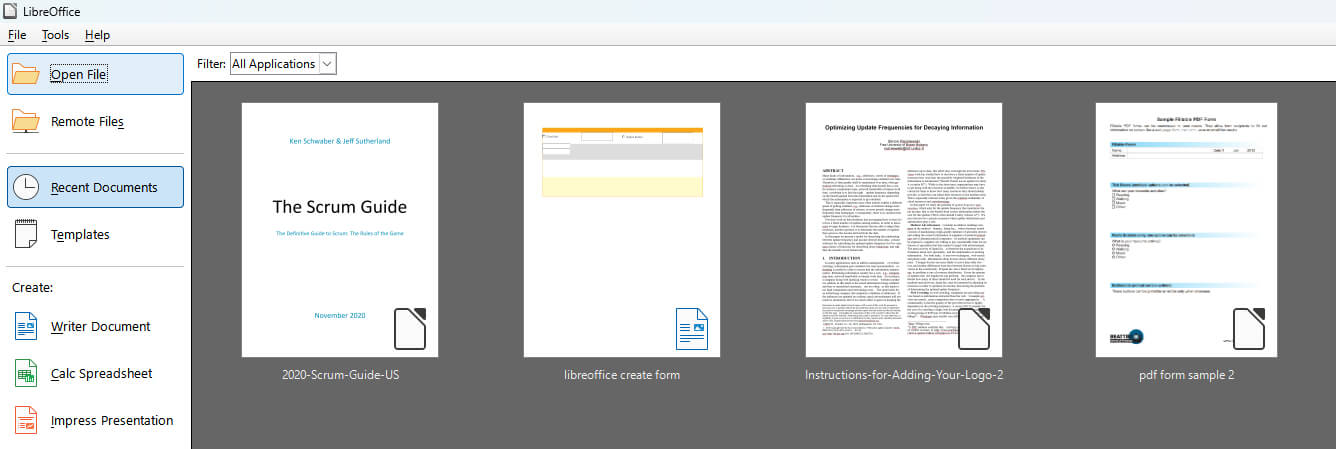
Open PDF in LibreOffice
Step 2. Go to “File” > “Properties” in the menu. A new window will open with several tabs.
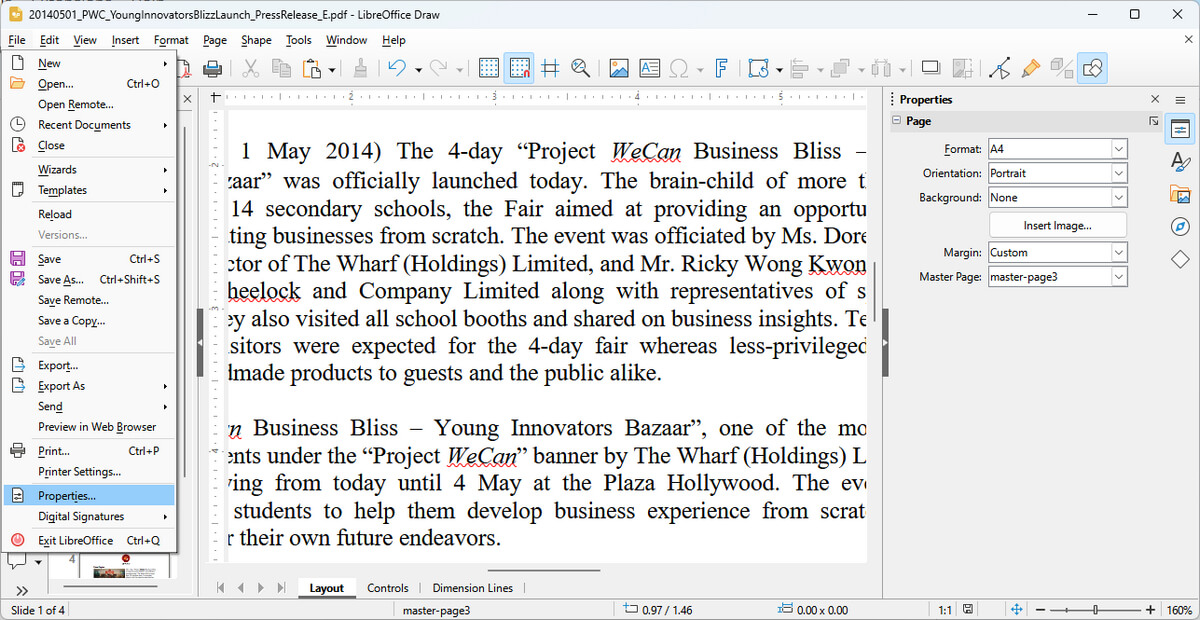
Go to Properties
Step 3. Click on the “Description” tab to view and edit the metadata fields, such as Title, Subject, Keywords, and Comments.
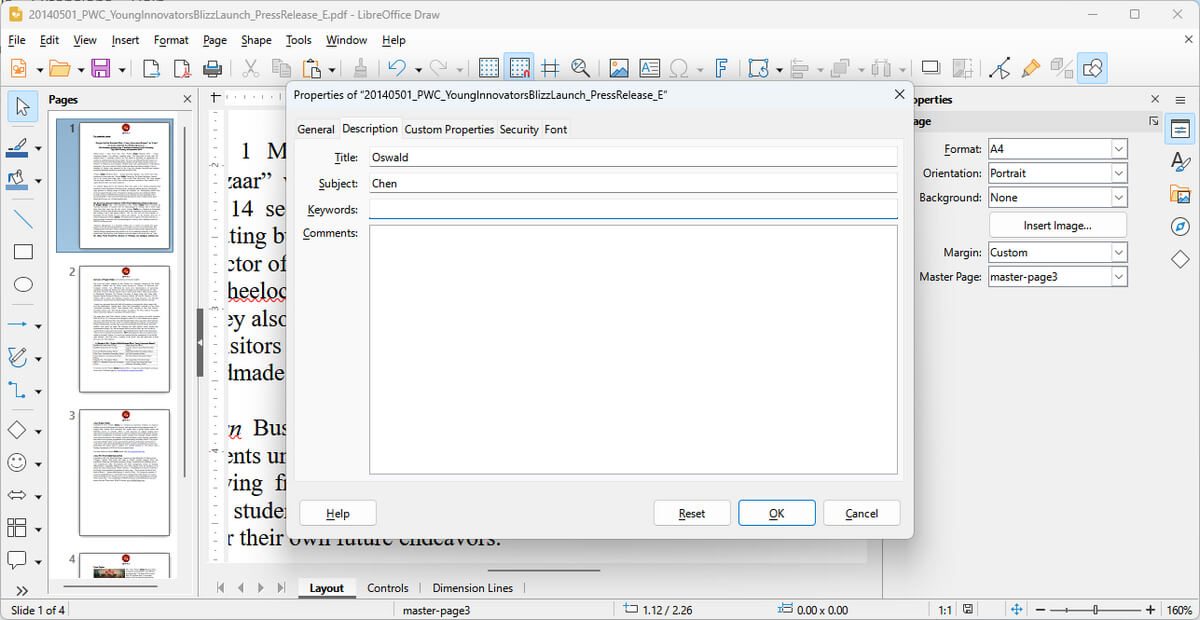
Edit Metadata
Step 4. After editing the metadata, go to “File” > “Export As” > “Export as PDF” in the menu. Choose a location and file name for the updated PDF file, and click “Save.”
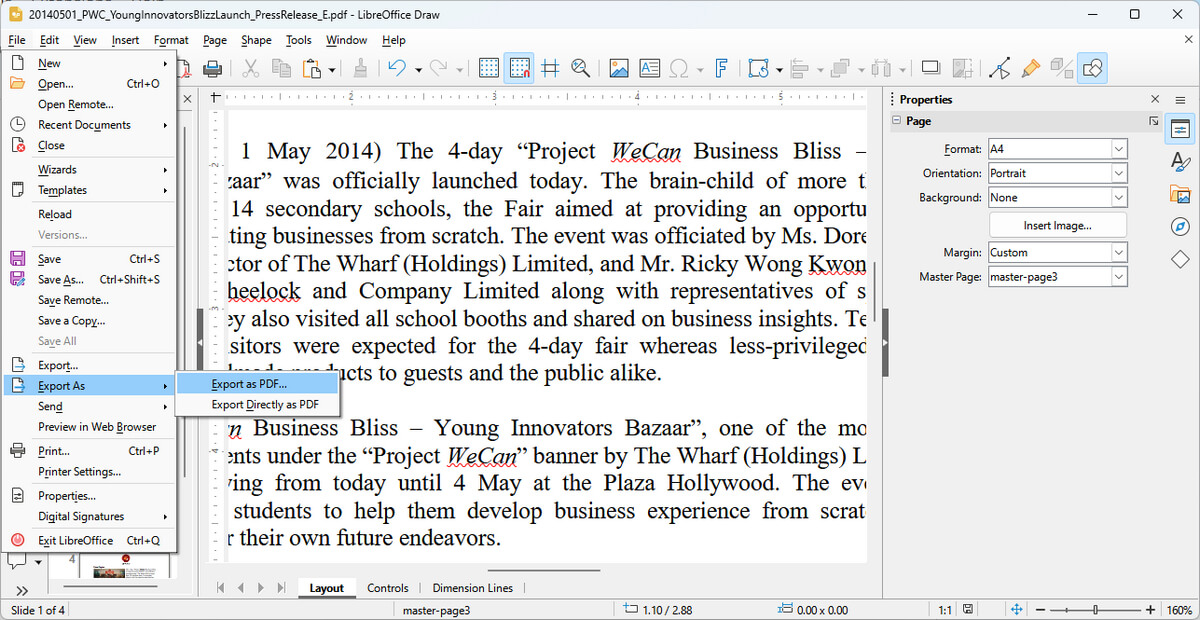
Export Updated PDF
In the General tab, ensure the Apply user data checkbox is ticked, then press the Reset button near it. This action refreshes the document’s author field based on the data given in the User Data field.
Edit PDF Metadata Online for Free
Sejda is an online PDF editing platform for you to easily modify metadata fields such as the title, author, subject, and keywords without the need to install any software on your computer.
It also allows you to edit PDF text with the same font online.
Note that the free version comes with some limitations, such as a maximum file size of 200 pages or 50MB, and a limit of 3 tasks per hour.
Step 1. Go to Sejda PDF metadata editor. Click the “Upload PDF file” button and choose the PDF file you want to edit, then click Change PDF metadata.
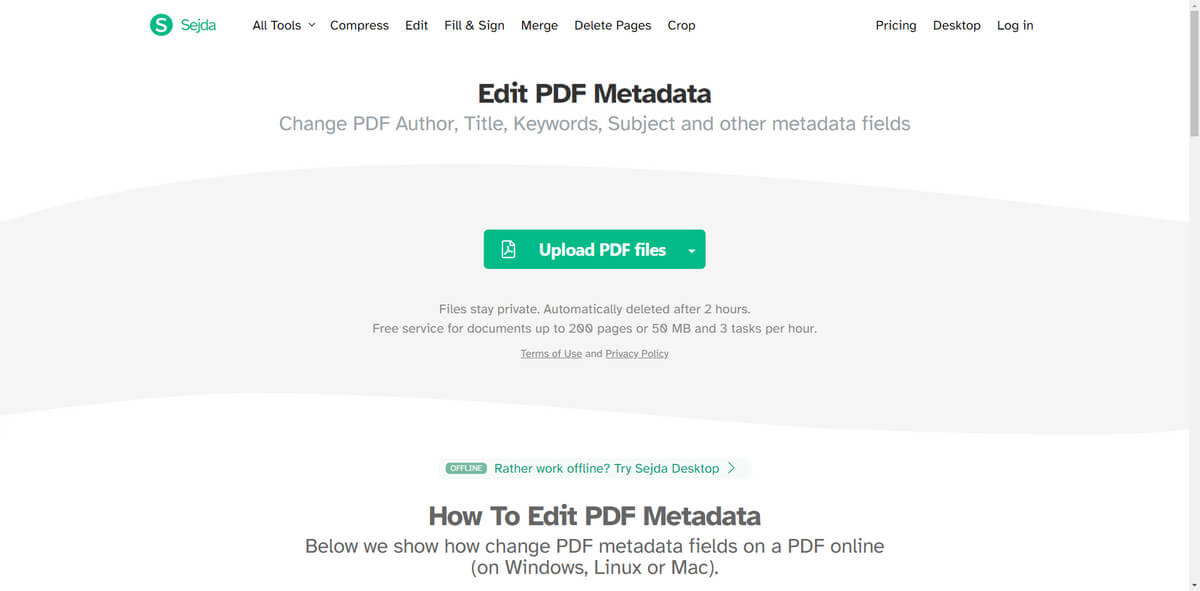
Upload PDF to Metadata Editor
Step 2. Once the PDF file is uploaded, you will see the metadata fields such as Title, Author, Subject, and Keywords. After editing the metadata, click the “Update PDF metadata” button at the bottom of the page.
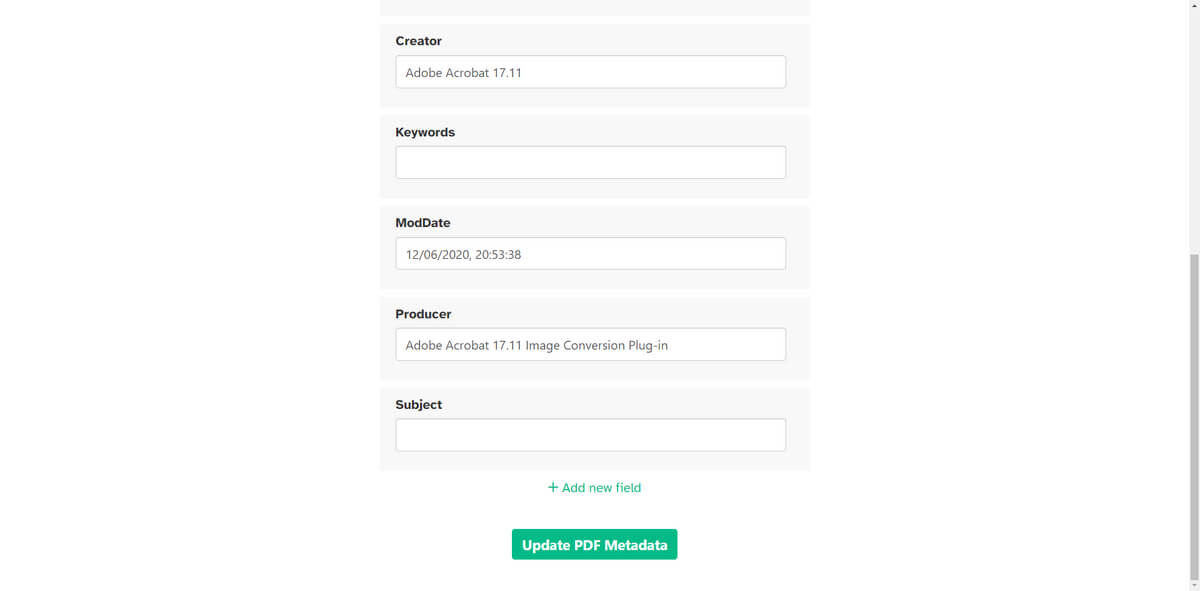
Edit the PDF Metadata
Step 3. Once the process is complete, click Download to download the updated PDF file with the edited metadata to your computer.
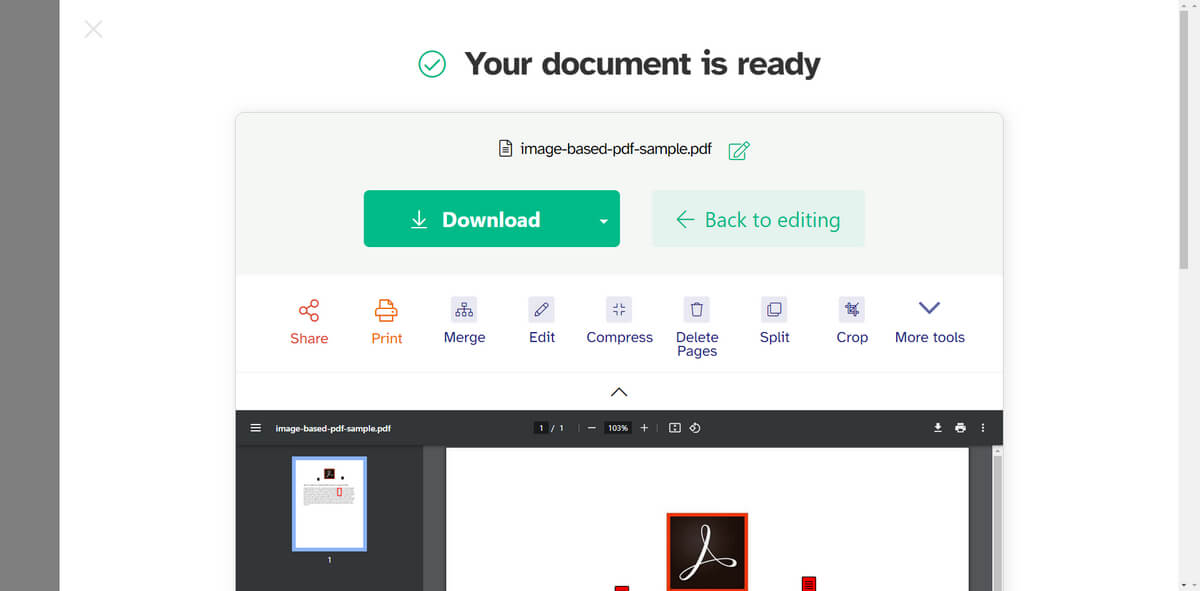
Download the Edited PDF File
Edit PDF Metadata with Adobe
Adobe Acrobat Pro is a powerful and feature-rich PDF editing software to easily access and modify PDF metadata, including fields such as the document’s title, author, subject, and keywords.
The software also provides advanced metadata editing options, allowing users to add or modify additional metadata fields like copyright status, copyright notice, and more.
Step 1. Download Adobe Acrobat, install it on your computer, and open the PDF file.
Step 2. Click on “File” in the top menu bar, and select “Properties” from the dropdown menu. This will open the Document Properties dialog box.
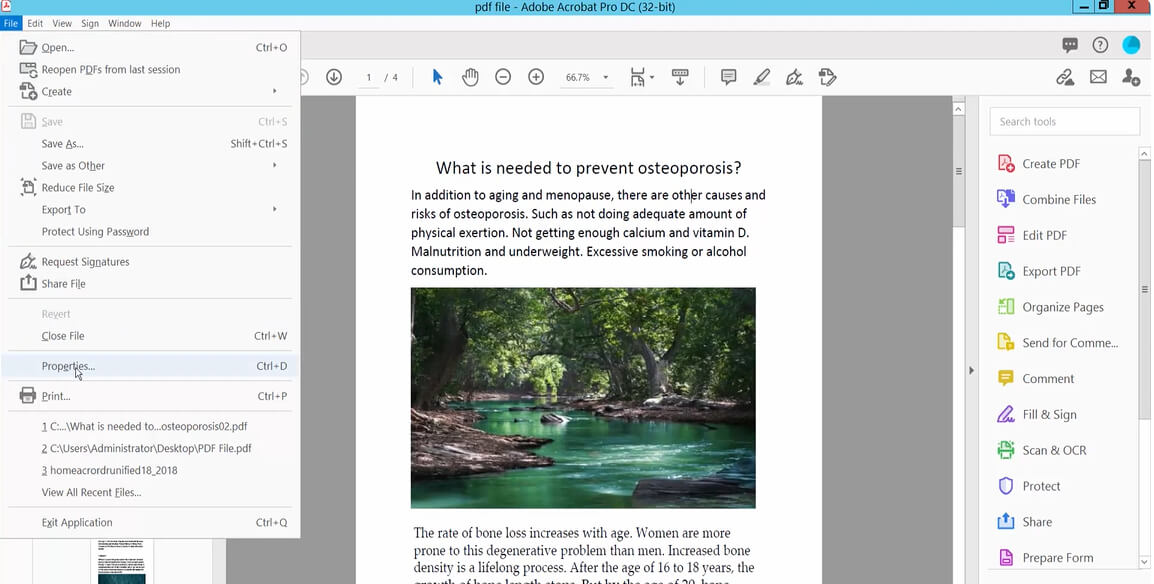
Go to Properties
Step 3. In the Document Properties dialog box, you’ll see several tabs. Click on the “Description” tab to access the metadata fields.
Step 4. Edit the metadata fields as needed, such as Title, Author, Subject, and Keywords.
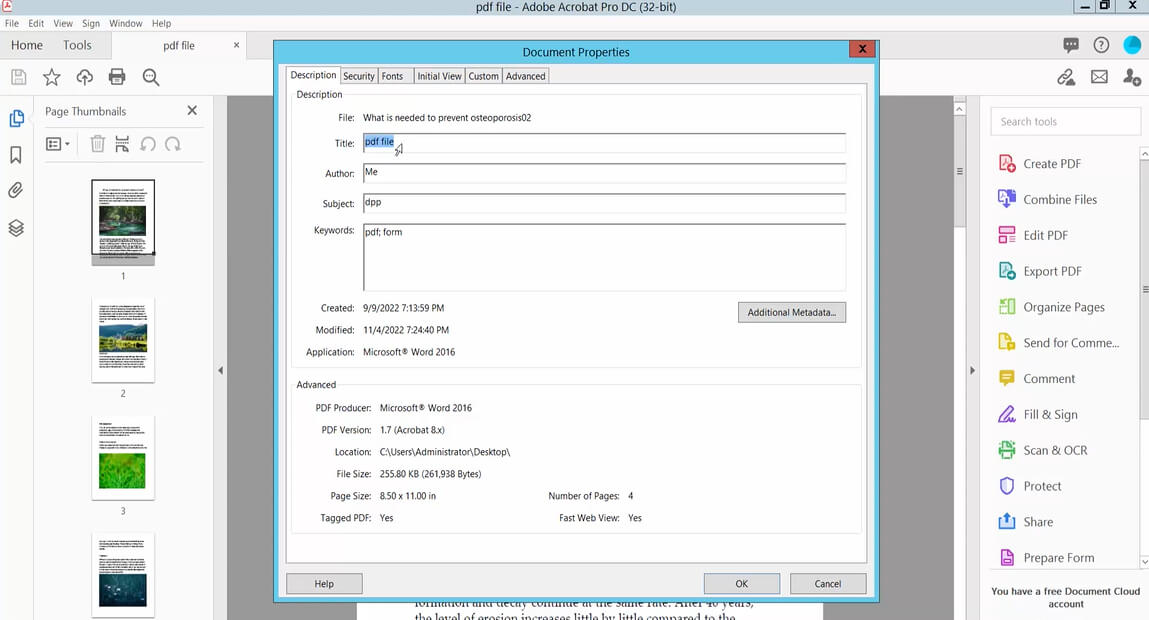
Edit Metadata
Step 5. Optionally, you can click on the “Additional Metadata” button to access more advanced metadata fields, like Copyright Status, Copyright Notice, and more.
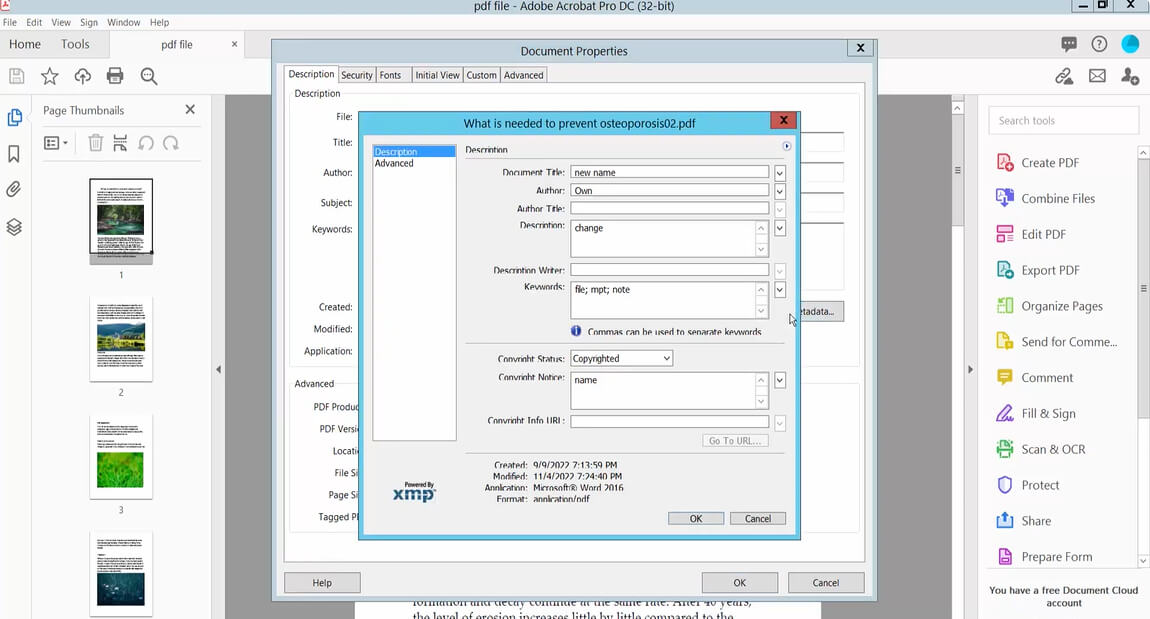
Additional Metadata
Step 6. After making your changes, click the “OK” button to save your updated metadata.
Step 7. Finally, save your PDF file by clicking “File” > “Save” or by pressing Ctrl + S (Cmd + S on Mac).
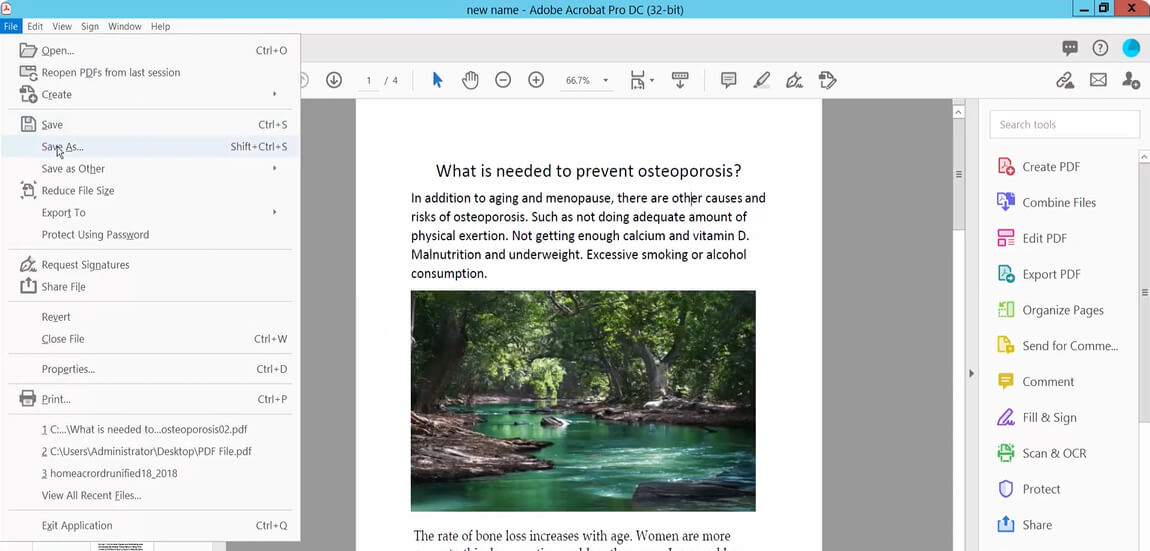
Save PDF
FAQs
Is it possible to edit PDF metadata without installing any software?
Yes, you can use online tools like Sejda or PDF Candy to edit PDF metadata directly in your web browser without the need to install any software on your computer.
Can I edit PDF metadata on a mobile device?
While many PDF metadata editing tools are designed for desktop computers, some online tools like Sejda can be accessed through a web browser on a mobile device.
However, the user experience might not be as smooth or optimized as on a desktop computer.
Does editing PDF metadata alter the content or formatting of the document?
In general, editing PDF metadata should not affect the content or formatting of the document. However, it’s always a good idea to create a backup of the original PDF file before editing its metadata, just in case any issues arise during the process.
Can I edit metadata for multiple PDF files at once?
Some tools, such as Adobe Acrobat Pro and ExifTool, allow you to edit metadata for multiple PDF files in a batch process. This can save time if you need to edit metadata for several documents simultaneously.
How do I edit PDF metadata programmatically?
If you have programming skills, you can use libraries like PyPDF2 for Python or Apache PDFBox for Java to edit PDF metadata programmatically.
