How to Add Signature Fields to PDF

Summary :
This page shows you how to add signature fields to PDF, making it interactive and signable after being sent to other people.
Table of Contents
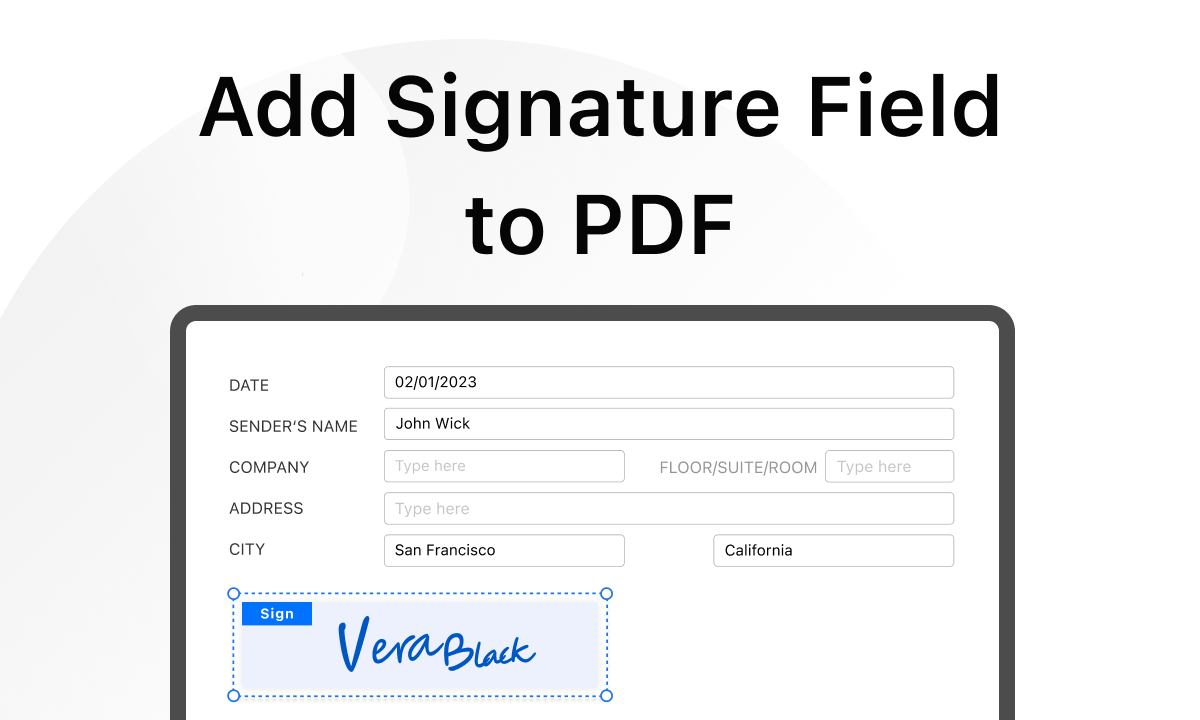
Add Signature Fields to a PDF Online for Free
PDFgear online PDF editor is a free and web-based tool that allows you to insert an electronic signature field in PDF for someone else to sign. It also allows you to sign on a PDF, with/without the signature block.
It’s free to use, there’s no watermark, and there’s no signup.
Moreover, the signature field added by PDFgear is supported in both PDFgear and Adobe Acrobat.
Step 1. Go to PDFgear online PDF editor, and click Select PDF file to open the PDF you need.

Select PDF file
Step 2. Once the file is loaded, click the Add and Edit Form Fields button in the upper-right corner.
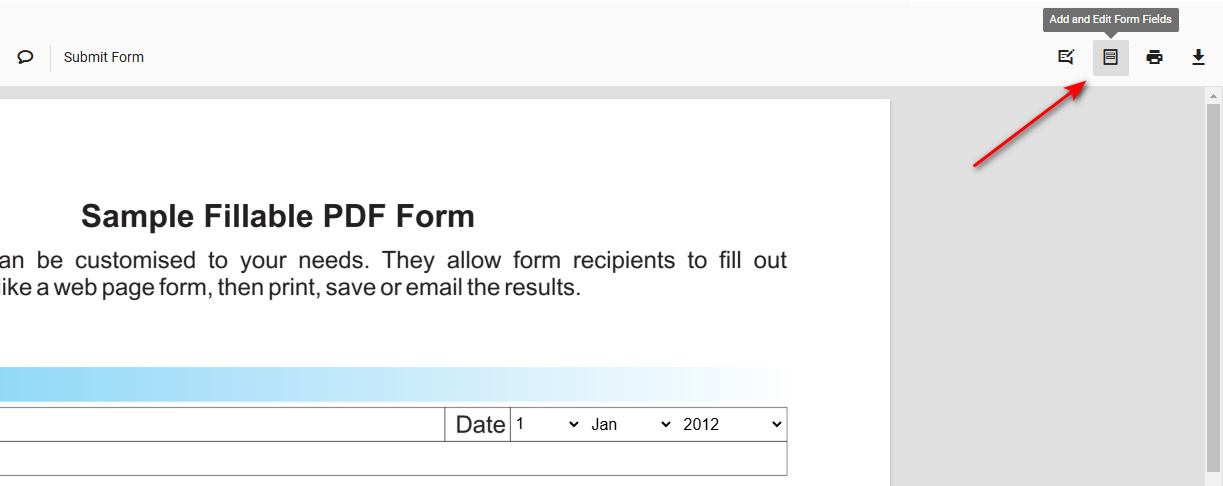
Add and Edit Form Fields
Step 3. From the upper ribbon, find and click on Add Signature, and choose whether you want to insert an editable signature field or an initial field.
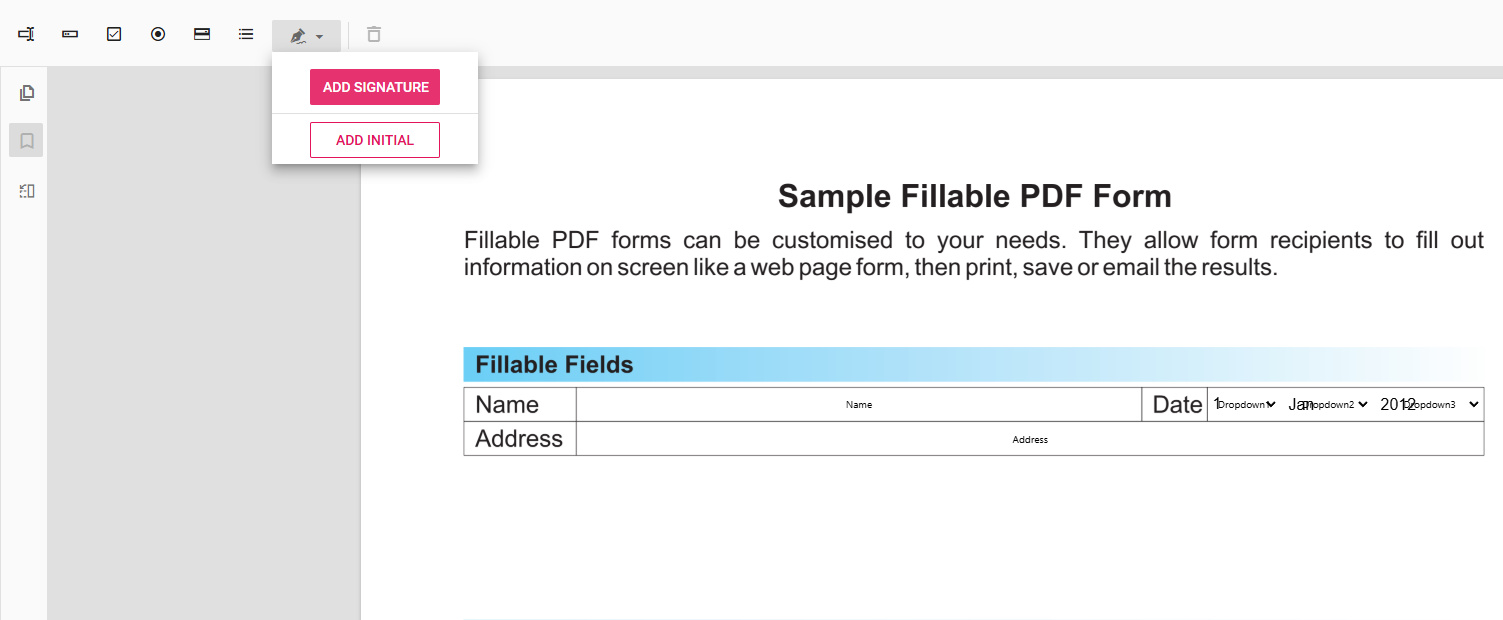
Add Signature
Step 4. Click on any part of a PDF page to insert the field there.
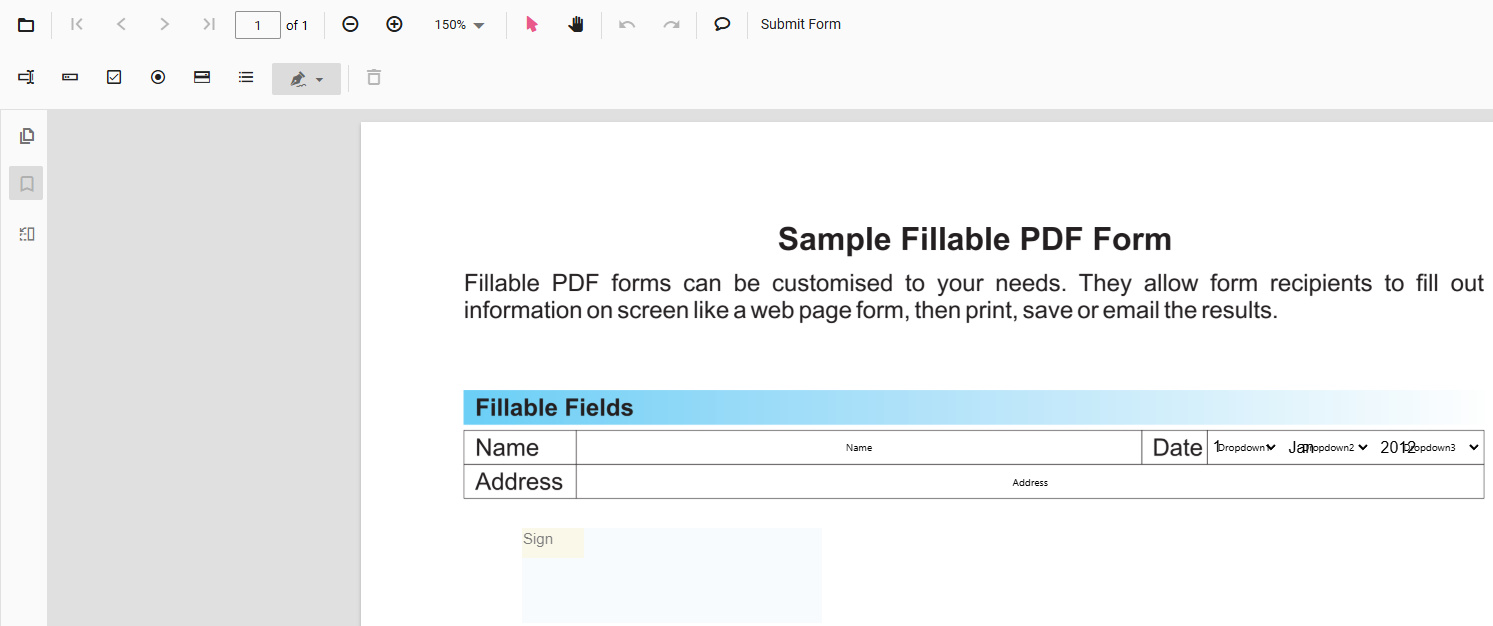
Insert the Field
Step 5. Right-click on the added signature field and click Copy in the dropdown to duplicate the field.
You can also click Properties for more customizations, like marking it as a required form field.
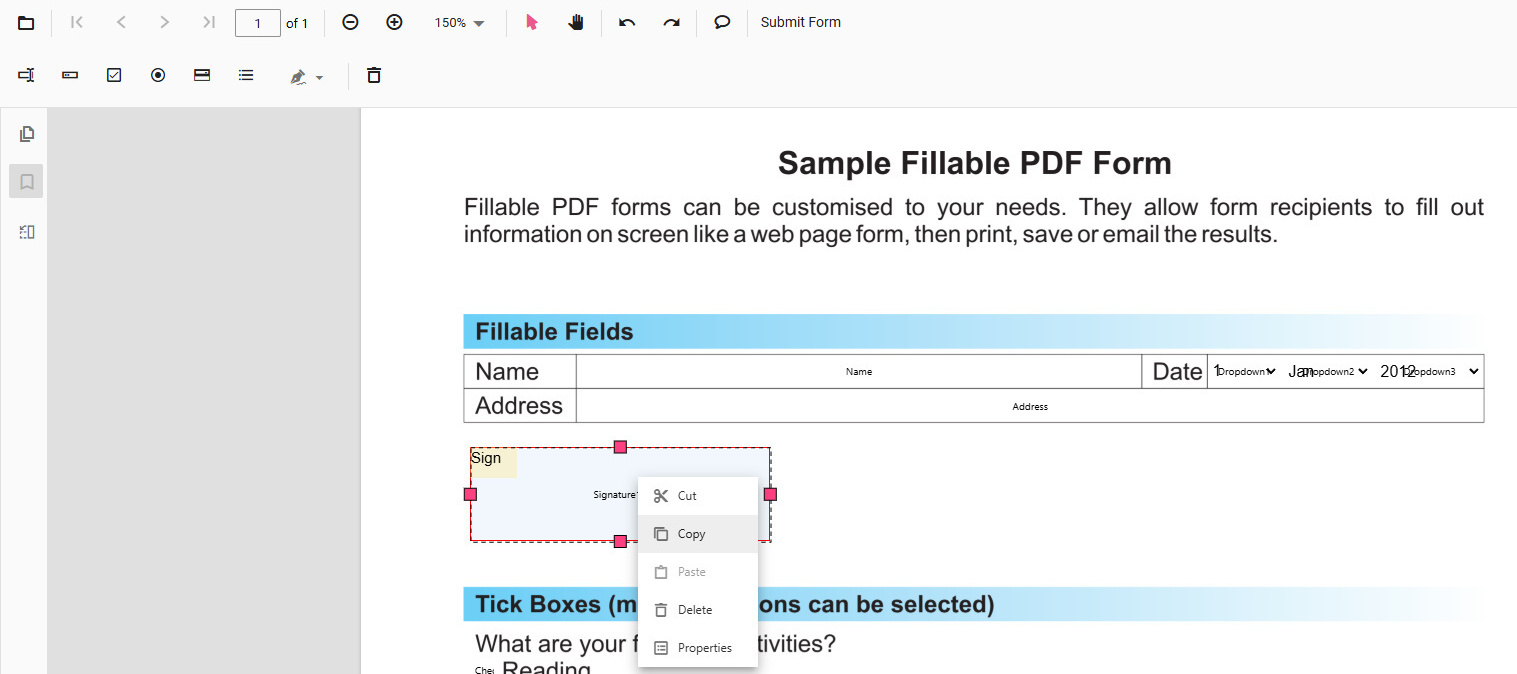
Duplicate the Field
Step 6 (Optional). For you or other people to sign on the inserted signature field, go to the Add or Edit annotations mode of the online editor.
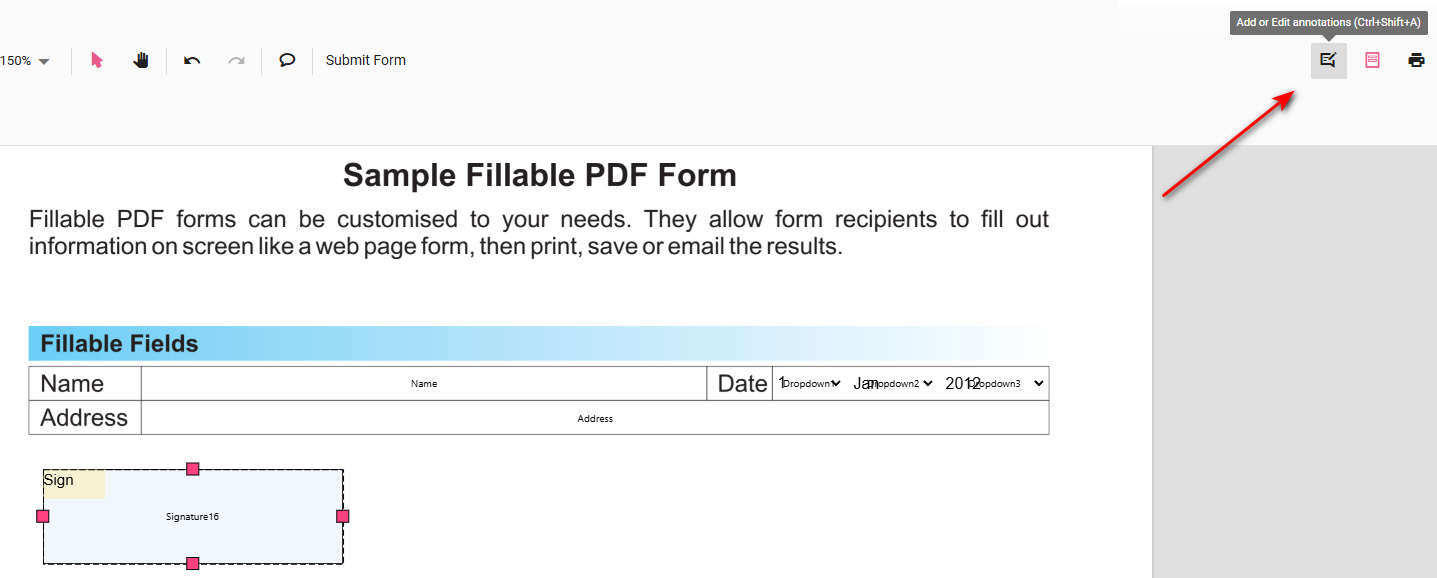
Add or Edit annotations
Step 7. Click on the inserted field, and you can create and insert a signature by typing, drawing, or uploading an image.
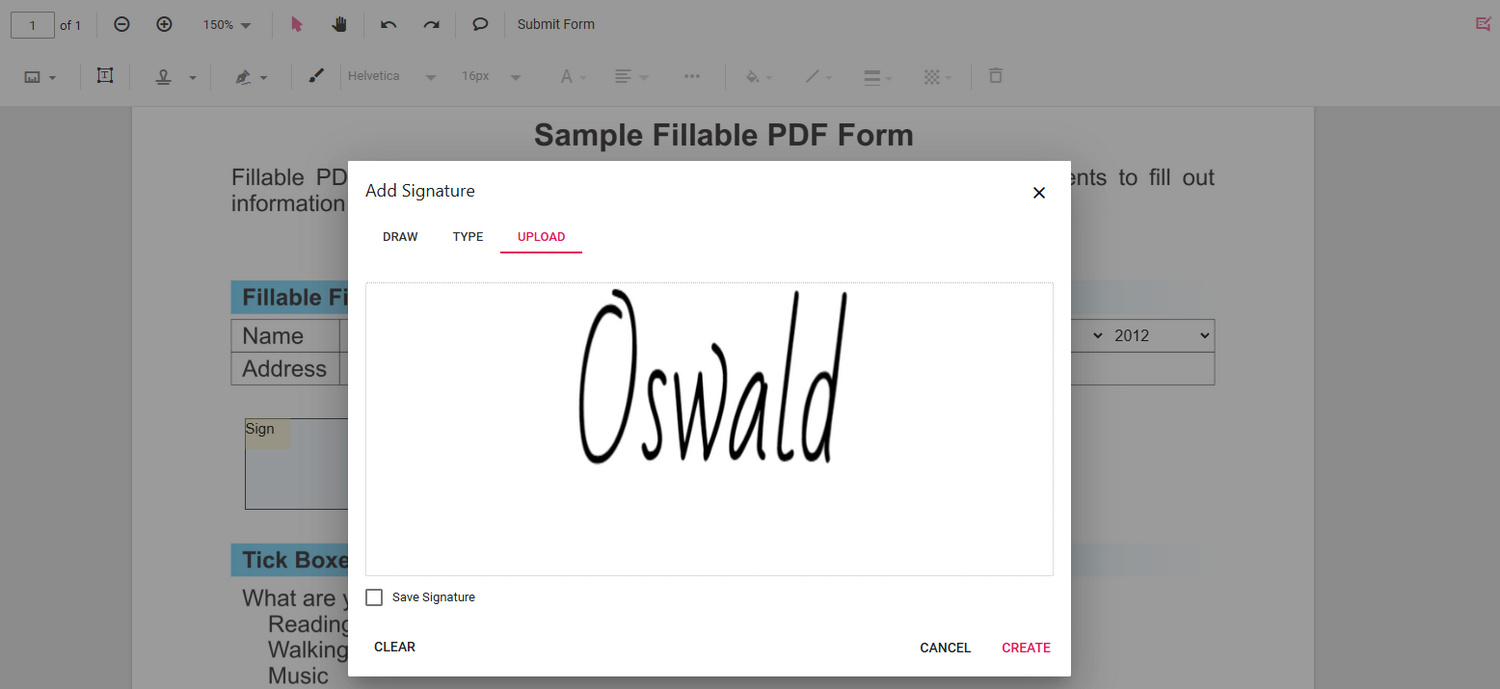
Sign the Field
Step 8. Lastly, click Download file in the top right corner to save a signable version of the PDF. If you’ve signed on the PDF and intend to prevent further editing, use the Print file feature instead.
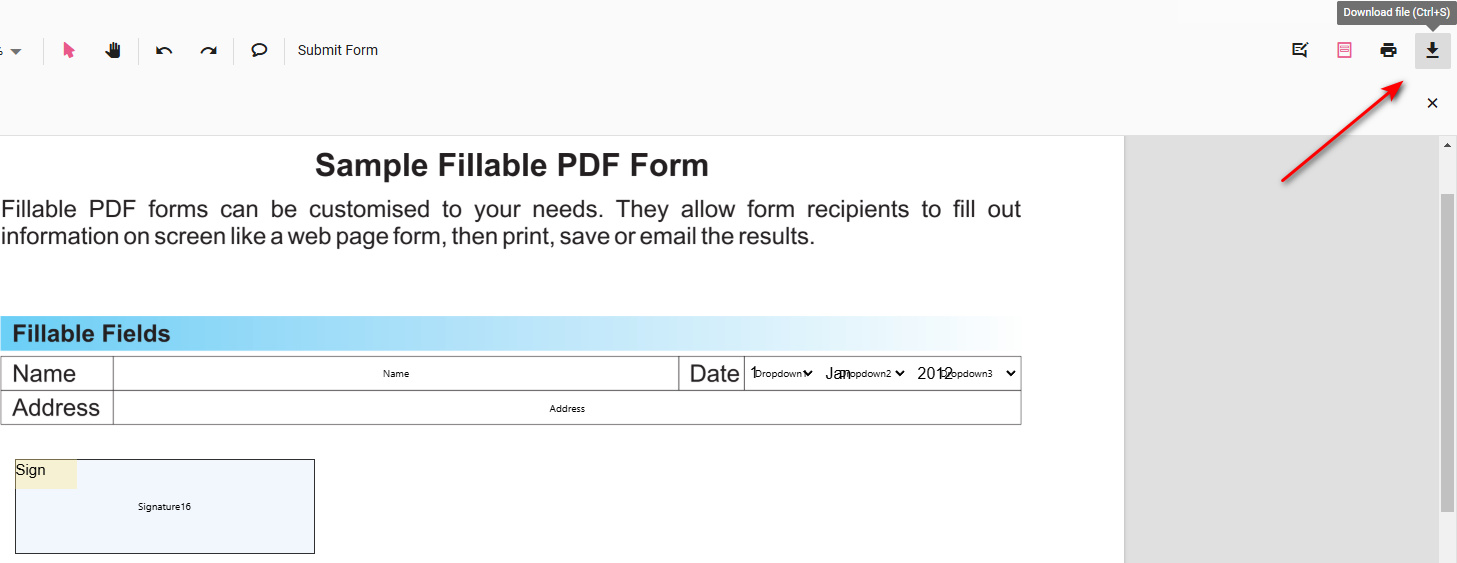
Download file
However, please note that the PDFgear online editor only supports electronic signatures. If you need people to be able to digitally sign the PDF, the paid tool Adobe Acrobat Pro is the choice.
How to Add Digital Signature Blocks to PDF in Adobe Acrobat
Adobe Acrobat Pro allows you to add digital signature fields and digital signature blocks into a PDF, however, the feature is only available in the paid Acrobat Pro, instead of the free version of Adobe Acrobat Reader.
With the support for digital signature and digital ID, Adobe Acrobat Pro also allows you and other people to digitally sign on the signature field with certification.
*This tutorial is up-to-date with the new Acrobat experience.
Step 1. Open the PDF in Adobe Acrobat Pro, and click the Prepare a form button.
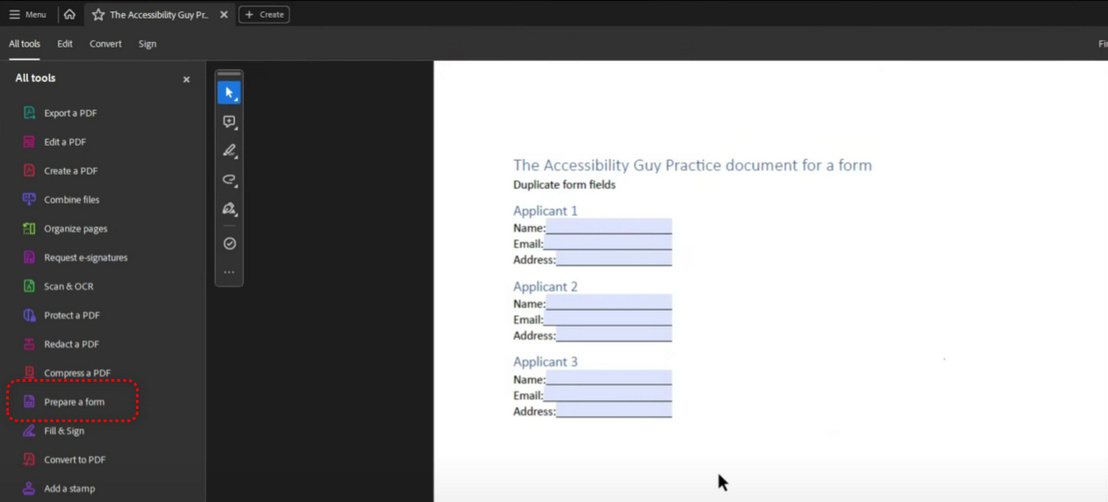
Prepare a Form
Step 2. Click the E-signature field button on the lower-left side.
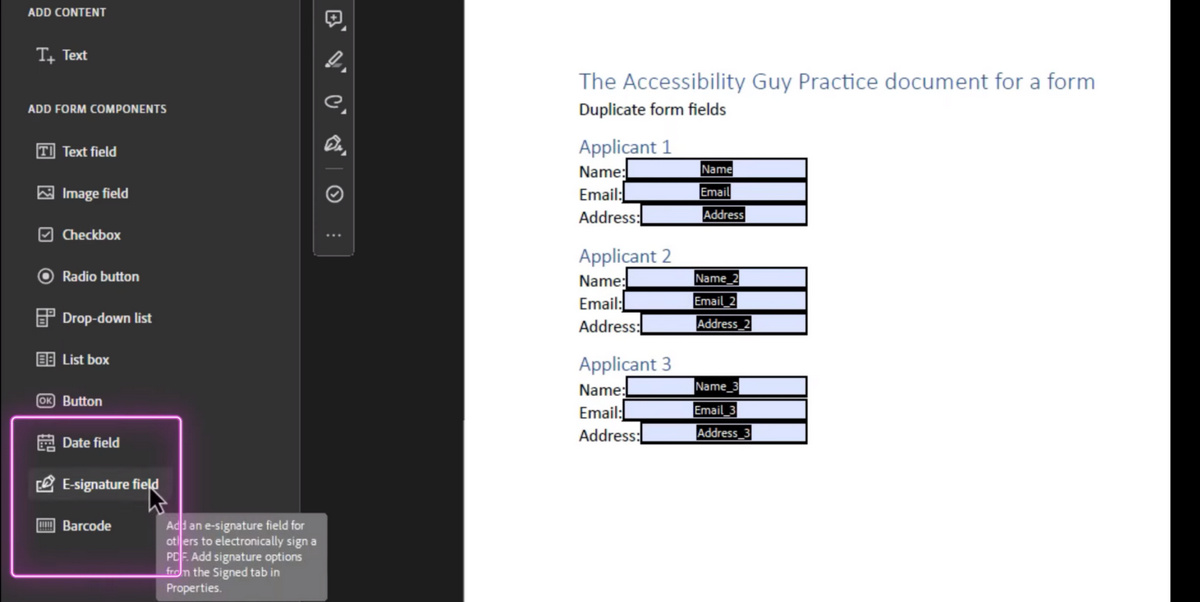
E-signature Field
Step 3. Move your mouse cursor and place the signature field on the PDF with a click.
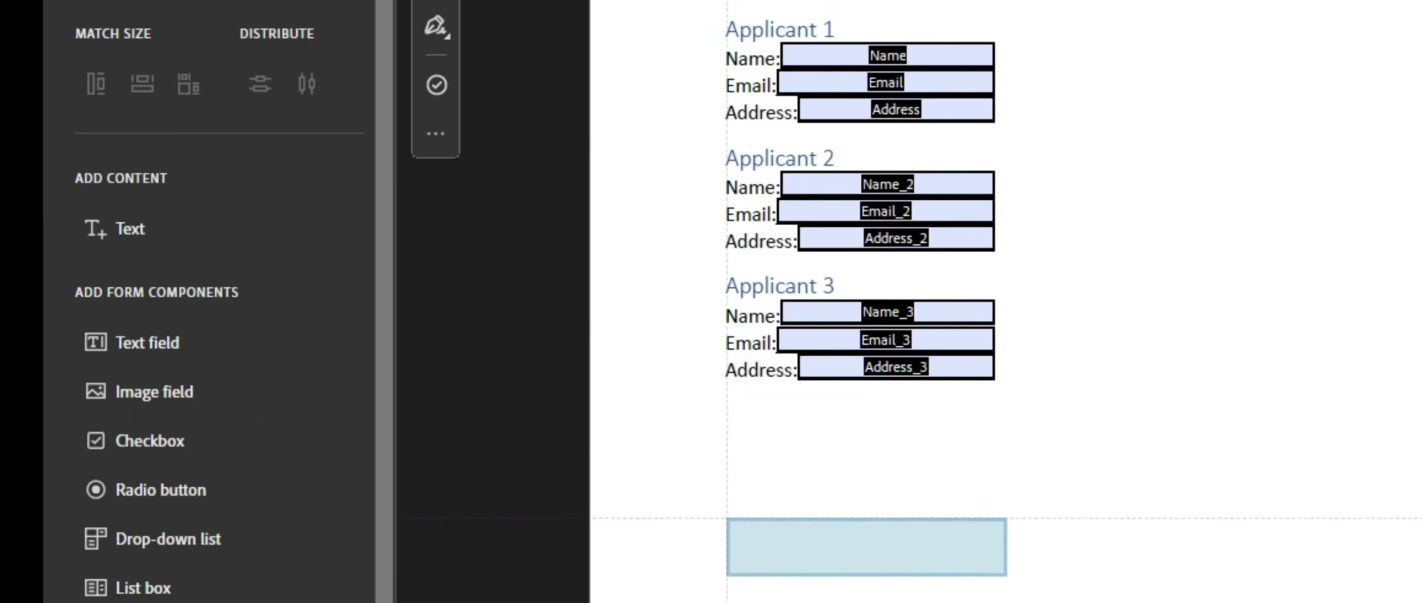
Insert the Field
Step 4. Right-click on the inserted signature field and click Properties from the dropdown to edit its properties, like setting the field as required.
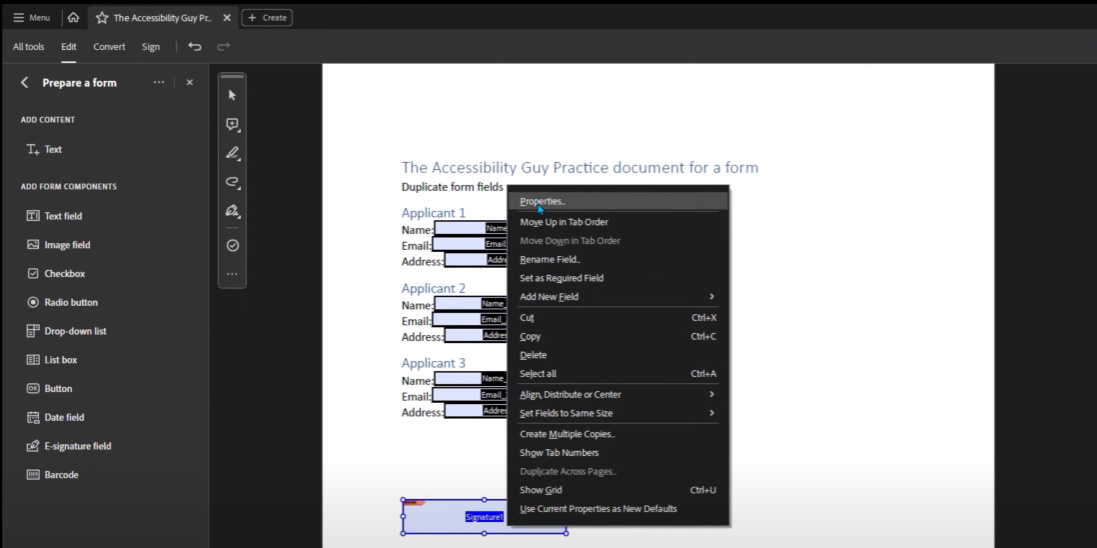
Customize Properties
Step 5 (Optional). For you and any other people to sign on the PDF. Click on the signature field, a window will pop up requiring a digital signature identity.
Click to Configure Digital ID.
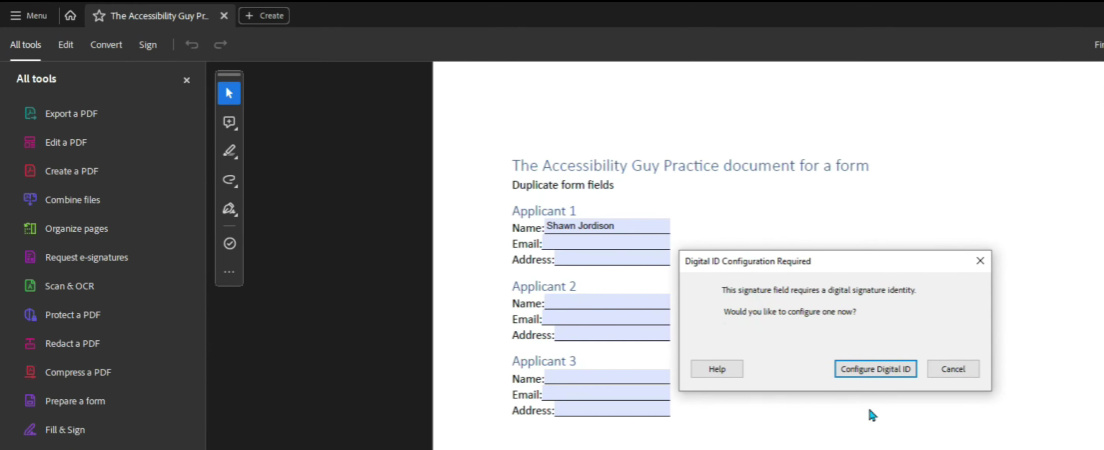
Configure Digital ID
Step 6. In the subsequent windows, choose the preferred Digital ID type, destination, and identity information as per need.
When the digital signature is created, tick Lock document after signing, and click Sign.
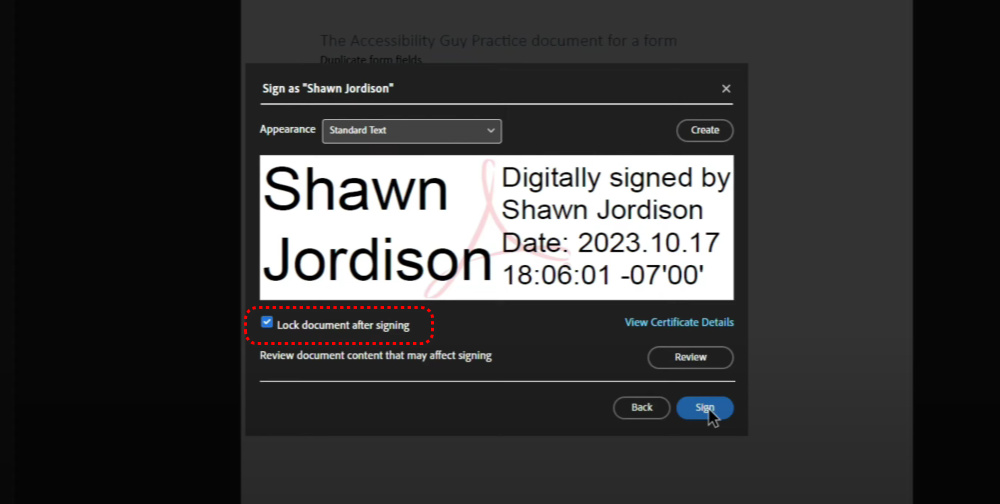
Lock and Sign
Step 7. Choose an output folder for the signed PDF, and the signature field is digitally signed as shown.
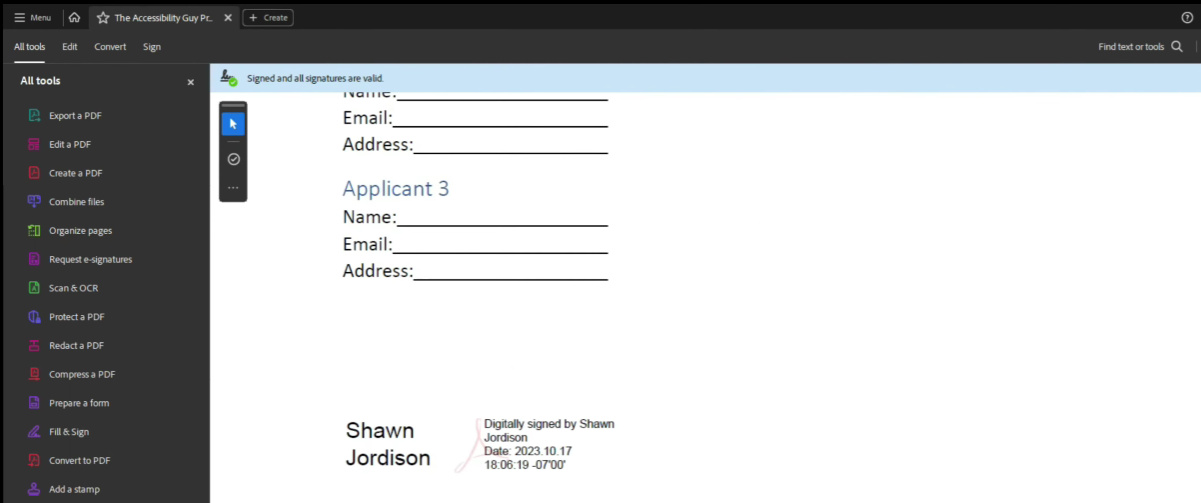
Digitally Signed
FAQs
How do I add a signature field to a PDF in Adobe Acrobat?
In Adobe Acrobat, you would select the “Prepare Form” tool, then click on “Add a Signature Field” and place it where you need it on the document.
Can I add a signature field to a PDF without Adobe Acrobat?
Yes, there PDFgear online PDF editor is a free alternative to Adobe Acrobat that allows you to insert signature fields to PDF on line for free.
Is it possible to add multiple signature fields to a single PDF?
In Adobe Acrobat, you can add as many signature fields as necessary. Each field can be assigned to a different signer.
Can I customize the appearance of a signature field?
Yes, PDFgear allows you to customize the appearance of signature fields, including the size, border, and text that appears within the field.
How do I send a PDF with a signature field to others for signing?
After adding the signature field to the PDF, you can send the document to others using email or a document signing service. Recipients can then open the document and click on the signature field to add their digital signature.
What should I do if the signature field is not working properly?
If the signature field isn’t working, it’s likely that you have printed the file instead of saving it as an editable PDF.
More Related Articles
